
AppSpyFree: Free Phone Spy App
We are going to introduce you to AppSpyFree (AppSpy Free). It is a free spying app. Include more than 10+ free mobile spying features.
- Spy on SMS messages
- Spy on Calls history
- Track phone's location
- Spy on Facebook, WhatsApp, Snapchat, Instagram, Viber, etc
- Live Voice Recording
- Works on any Android device
TRY FREE PHONE SPY NOW MORE 10+ FREE SPYING FEATURES
About AppSpyFree
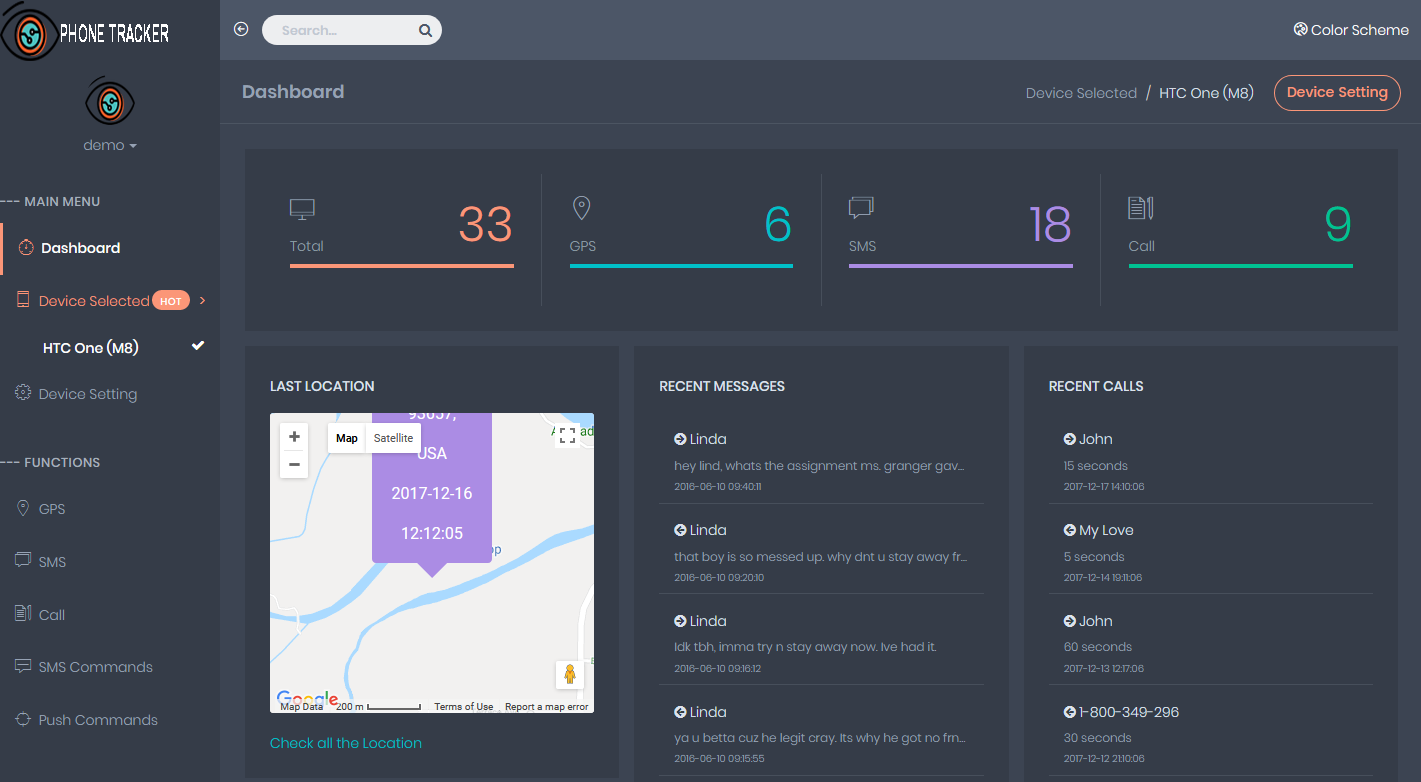
AppSpyFree is a very powerful phone spying app with amazing features. You can use this phone spying app to monitor kids, track employees, manage your phone data, and for other purposes.
AppSpyFree - Your Safety is Our Only Priority
By using AppSpyFree, you will get to enjoy multiple spying features. This app contains all the previous as well as the latest features to support all types of spying. The developers constantly provide updates that include new features to fit all your spying requirements.
As mobile technology is changing every day, users keep on demanding new spying features. But with us, you don’t have to worry about it. We change our features as per the growing trend.
Example: Earlier, only calls and message spying was important. But now people want to spy on other apps as well. So, to help them, AppSpyFree provides app tracking and spying features.
You can spy on all the apps inside the phone by using a combination of advanced features.
This spying app is safe and secure as it follows all the guidelines of ethical spying. We encrypt all your data so that it remains secure. Only you will be able to access the information by using this app.
It supports secret spying. The developers have made this app undetectable. When you use this spying app, it will secretly work in the background. It doesn’t show up on the phone screen and keeps on functioning to collect information.
It is perfect for spying on rebellious teenagers and sketchy employees. AppSpyFree is your ideal spying partner when you want to spy on a cell phone.
10+ AppSpyFree Mobile Spy Features
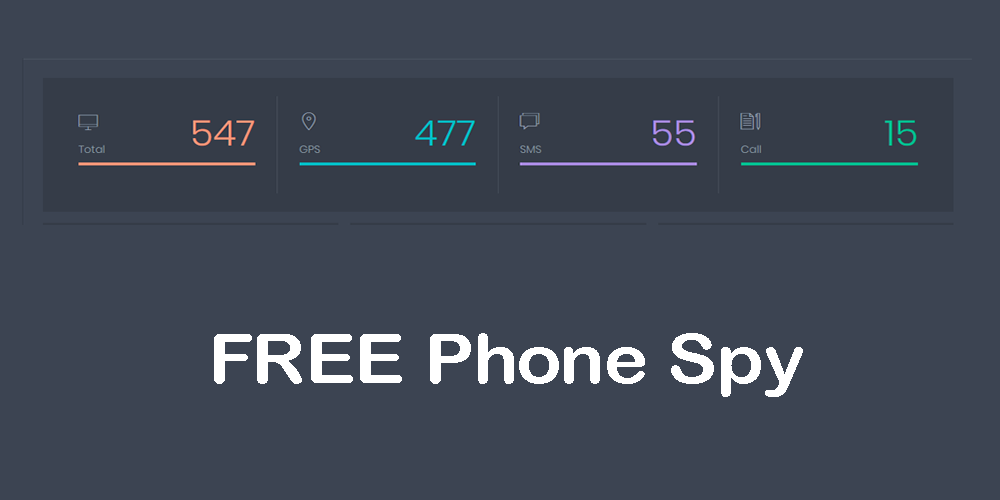
AppSpyFree contains a plethora of spying features to fit all your requirements. No matter which activity you want to spy on, you can easily do it by using these amazing features.
Calls and Messages
Now, you can easily spy on all the calls and messages by using these features. It contains these three features.
- Spy Call Logs: This feature helps you to view all the call logs. You can check incoming calls, outgoing calls, missed calls, call duration, call information, and date and time.
- Text Message Spy: This feature helps you to read all the text messages. You can check sent messages, received messages, draft messages, deleted messages, contact details, multimedia, and date and time.
- Watchlists Contacts: By using this feature, you will get alert when a specific number calls. It is best to protect kids from sex offenders and bullies.
Messenger Apps
These features help you to spy on different types of messenger apps on the phone. You will be able to monitor chats from different apps.
- WhatsApp Spy: You can now spy on WhatsApp chats. You can read all the conversations along with media, contact details and date and time.
- IMessages: It is a popular iPhone messenger app. You can spy on it and read all the messages.
- Viber Spy: Like WhatsApp, you will be able to spy on Viber. You can get information about chats, media, calls, personal information, and date and time.
- Kik Spy: You can spy on Kik conversations as well. You can check all the incoming and outgoing chats.
- Skype Spy: You can check the messages sent and received on Skype.
- Line Spy: Like other messenger apps, you can spy on Line messages as well.
- Tinder Spy: You will be able to read all the chats on the Tinder app.
- Telegram Spy: You can read normal chats along with secret chats on Telegram by using this spying app.
Social Media
Apart from the messenger app, you will be able to spy on different social media apps on the phone.
- Facebook Spy: By using this feature, you will be able to read the personal chats on Facebook.
- Instagram Spy: You will also be able to check Instagram chats with this spying app.
- Snapchat Spy: You will get all the information about Snapchat conversations.
- Twitter Spy: You can read Twitter chats as well.
GPS Location
You can use different features of this app to get GPS location-tracking information.
- Present Location: You will get accurate real-time location data. You can check the location on the map.
- Location History: It also helps you to check the location history. All the previous location information is available.
- Geofencing: This feature helps you to track specific locations. You can set a geofence for any location.
- Alerts: You can set alerts for some locations. It can be for school, office, and other hangout spots.
Recording
There are two important recording features which help you to record sounds and calls.
- Call Recording: This feature helps you to record calls and listen to them.
- Ambient Voice Recording: This feature helps you to record the surrounding sounds.
Multimedia
There are two important multimedia spying features.
- Photos: You can view all the photos inside the phone.
- Videos: You can also view all the videos.
Remote Control
There are multiple remote control features in this spying app. You can remotely do all these things.
- Lock Phone: It locks the phone remotely.
- Wipe Data: It wipes all the data from the phone.
- App Blocking: You can block apps remotely.
- KeyLogger: You can check the keystrokes.
- Screenshot: You can use a camera to take screenshots.
Online Activities
It helps you to monitor all the online activities.
- Browsing History: You can check the online browsing history.
- Email: You can check the emails.
How to Spy on Phone using AppSpyFree

The installation process is very easy. This app is specially designed for Android as well as iPhone. You have to follow few simple steps to install this app.
Installation Process for Android
For android installation, you need physical access to the phone. Follow these steps.
Step 1: Download & Install
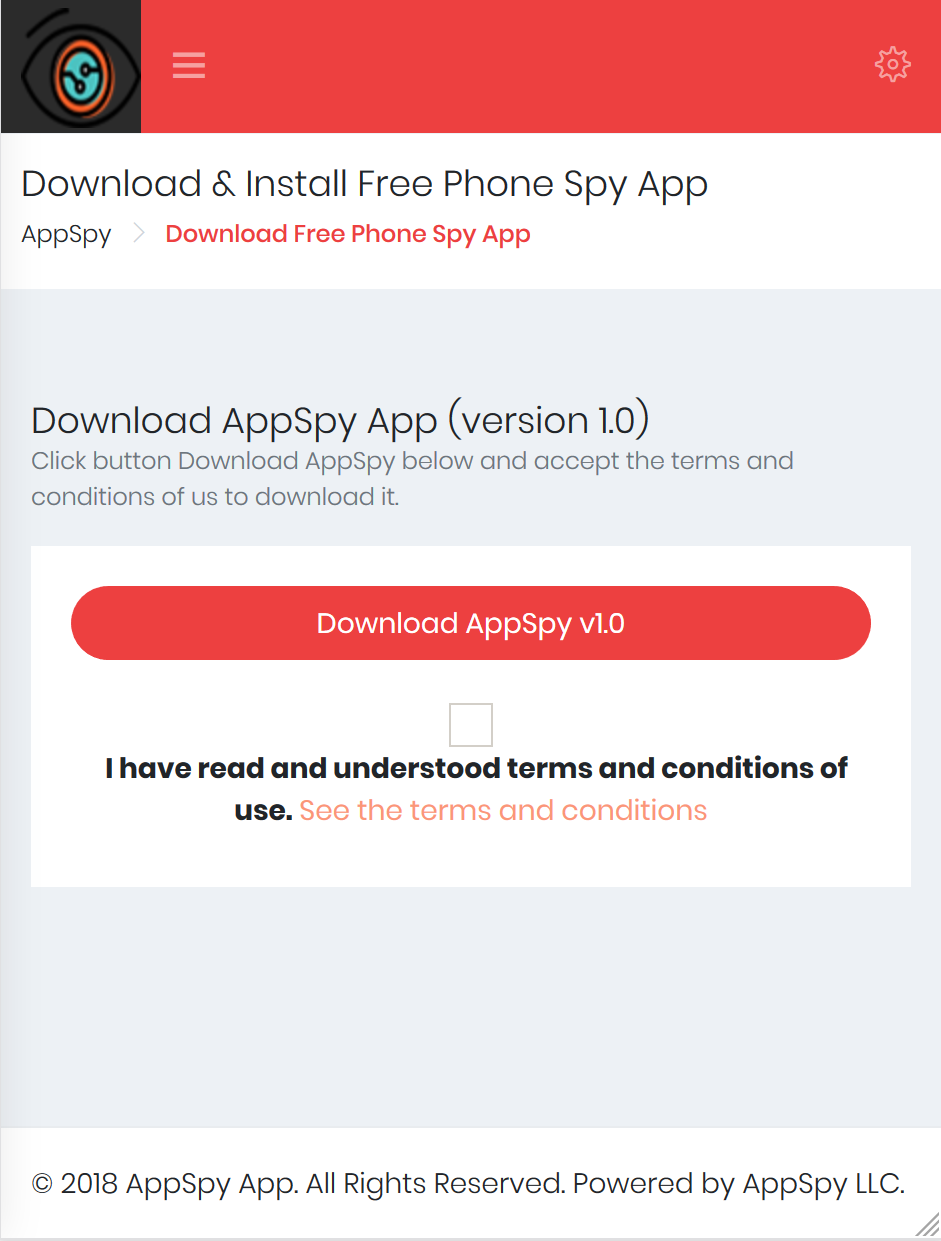
Take the android phone and enable sources. After that, open the AppSpyFree website in it. Check the download link and press it to download it on the phone.
Go to the download folder and look for the downloaded file. Open the file and press the install button for installation.
Step 2: Sign up

Open the app and give permissions. Press in sign up and enter details to make an account.
Step 3: Delete History
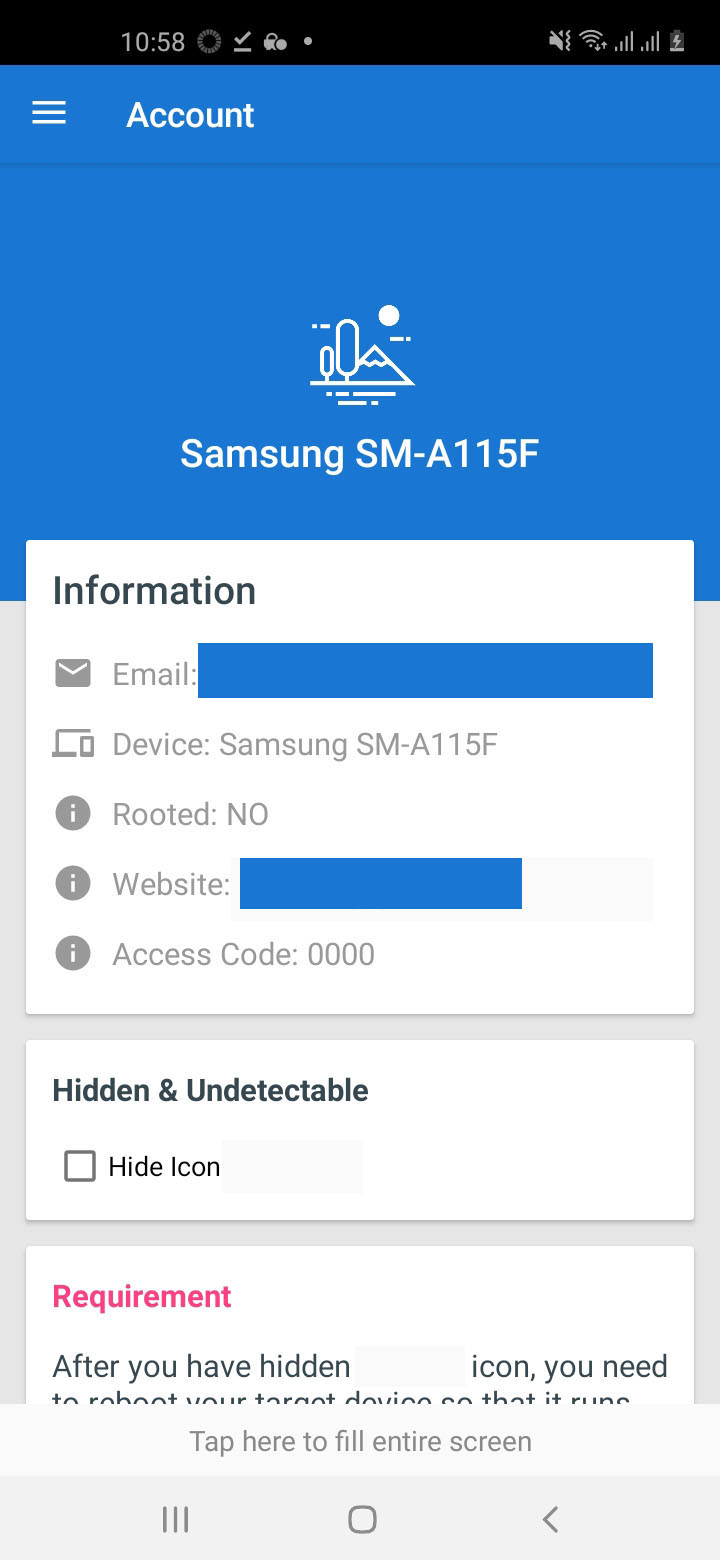
After successfully signing up, close the app. Now, delete the history and keep the app hidden.
Step 4: Log in
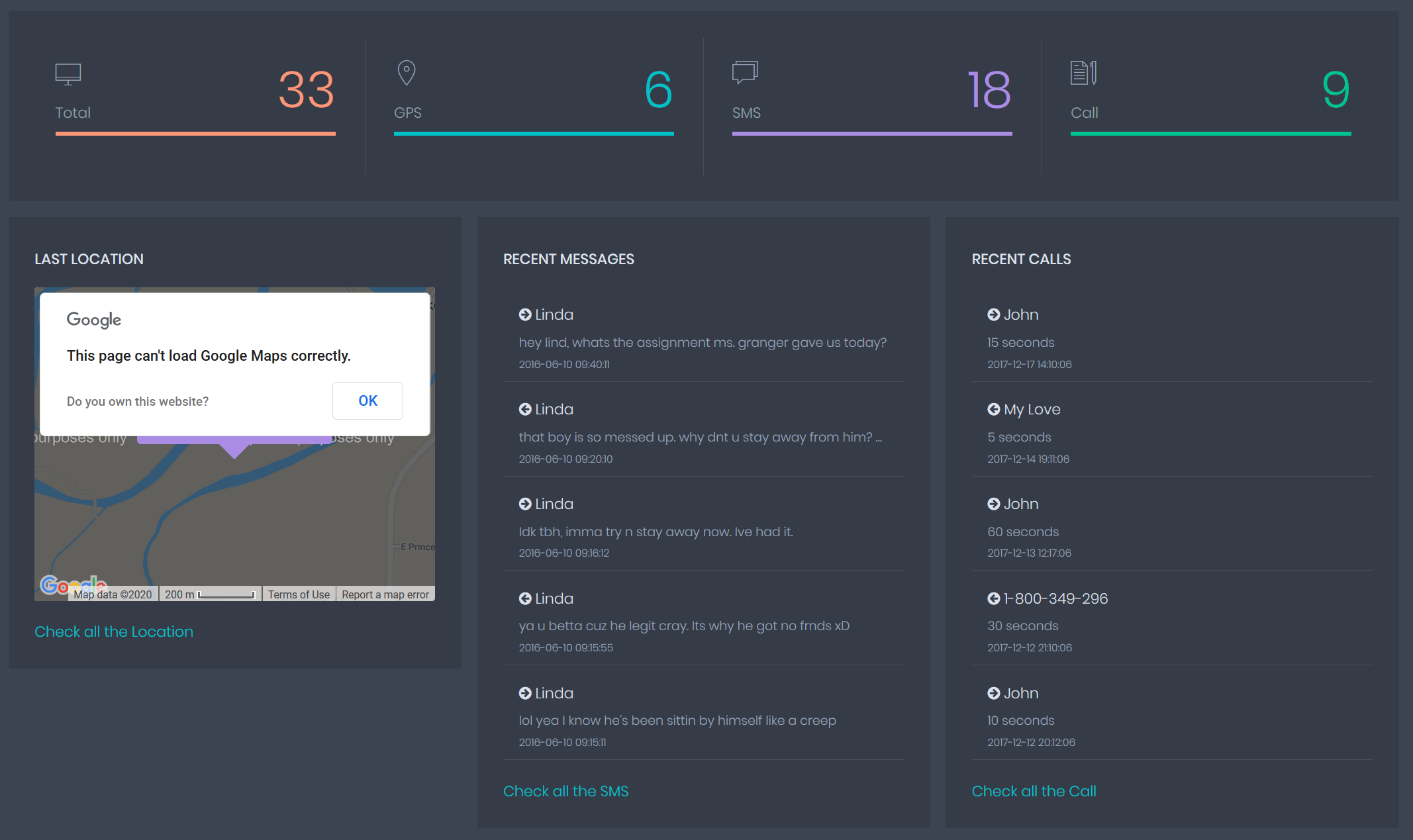
To spy on the phone, use your phone and login from the AppSpyFree website. Use the credentials you used in step 3. Now, you can spy using the features given in the left-hand side of the account.
Installation Process for iPhone
For iPhone installation, you don’t need the iPhone. Use the user’s iTunes details to install the app. Follow these steps.
Step 1: Sign up
Open your phone and go to the AppSpyFree website at appspyfree.com. Press on sign up and enter all your details.
Step 2: iTunes Details
Go to the panel option at appspyfree.com/cp/ and type the user's iTunes details in the box.
Step 3: Log in
Now, login to the account to spy. Use the features to spy on different activities.
Why Use AppSpyFree?
AppSpyFree is a very useful spying app and has multiple benefits. You can use it for a number of reasons.
Parental Control
You can easily control your kids if you know what’s going on in their life. Moreover, you can use this app to secretly spy on their cell phone. You can monitor their activities and chats to control them. You can even protect them from dangers.
Employee Management
Business organizations can use this spying tool to manage their employee activities. It will help you to check their productivity, phone usage time, their location, and other important details. You can use this app to prevent them from sharing your business secrets.
Data Backup
You can use this spying app to spy on your own phone. It will help you to retrieve all the important data if your phone is lost. You can also use the location tracking option to find your lost phone. It can also help you to remain safe if you are in any trouble.
Online Safety
This app helps to maintain online safety. You can check if your loved ones are in danger. You can protect them from cyber-crimes and cyber-bullies.
Conclusion
AppSpyFree gives to the necessary power to protect your loved ones from all the dangers that are lurking around. You can use this app to protect your family and your kids. You can keep your business safe with AppSpyFree. AppSpyFree is the perfect weapon against online dangers and cyber-criminals.

 AppSpy Editor