
Location Tracker for Families
Modern smartphones make it possible to know where family members are in real time, set virtual boundaries, and review recent movements. A well‑configured location tracker can reduce worry, speed up responses in emergencies, and help families coordinate daily routines. This guide explains how location tracking works, how geofencing and location history function, how to set up AppSpyFree for parent‑child monitoring, and practical considerations for privacy, battery life, and legal boundaries.
What a Location Tracker Does
A location tracker uses a device’s built‑in positioning systems to report where that device is on a map. Most trackers combine GPS, Wi‑Fi positioning, and cellular network data to produce a location that is both accurate and timely. Key capabilities include:
- Live location updates so you can see where a device is right now.
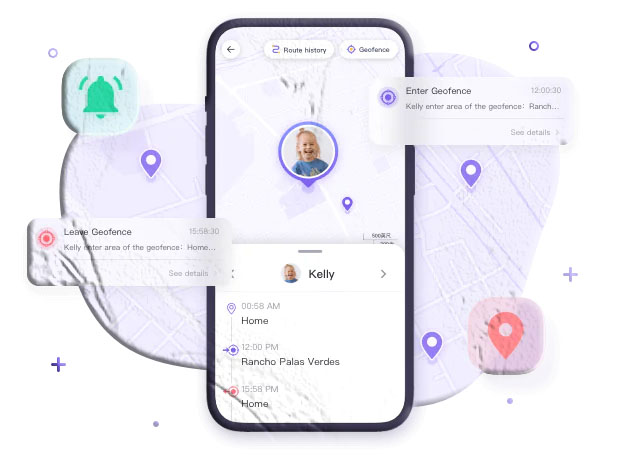
- Geofencing to create virtual zones and receive alerts when a device enters or leaves those zones.
- Location history to review where a device has been over a set period.
- Notifications for arrivals, departures, and unusual movement patterns.
These features are useful for parents coordinating school pickups, caregivers checking on elderly relatives, or families keeping tabs on teens who are learning to travel independently.
How Live Location Tracking Works
Live tracking relies on continuous or periodic location sampling from the tracked device. The device collects coordinates and sends them to a server or directly to a paired device. Important technical points:
- GPS provides the most precise outdoor location. Accuracy can be within a few meters under clear sky.
- Wi‑Fi and cell tower triangulation improve location indoors or in urban canyons where GPS signals are weaker.
- Update frequency affects battery life: more frequent updates give finer granularity but consume more power.
- Map integration (for example, Google Maps) displays coordinates visually and supports routing, place search, and address resolution.
When a parent opens the tracking app, the app requests the latest coordinates and displays them on a map. If the app supports push notifications, it can also send alerts when predefined conditions are met, such as leaving a geofence.
Geofencing Explained
A geofence is a virtual perimeter drawn on a map. When a tracked device crosses that perimeter, the system triggers an event: an alert, a log entry, or a notification. Geofences are useful because they let parents know about movement without constant manual checking.
Common geofence uses:
- Home and school boundaries so parents receive an alert if a child leaves school early or arrives home.
- Safe zones for younger children such as playgrounds or a relative’s house.
- Restricted areas where entry should trigger a check‑in or call.
How geofences work technically:
- The parent defines a center point and a radius (for circular geofences) or draws a polygon.
- The tracked device’s location is compared to the geofence coordinates.
- When the device crosses the boundary, the app records the event and sends a notification.
Geofences can be scheduled by time of day (for example, active during school hours) and adjusted for radius to match realistic movement patterns.
Location History and Timeline
Location history stores past coordinates and timestamps so you can review where a device has been. This is useful for:
- Understanding daily routines and common routes.
- Verifying arrival and departure times for school, activities, or appointments.
- Investigating unusual movement if a child visits an unexpected area.
Most systems present history as a timeline or a list of stops with durations. Some trackers allow exporting or viewing history for a fixed number of days; for example, a 15‑day window is common in many family tracking apps.
Why Families Use AppSpyFree
AppSpyFree is a family location tracker that offers live location, geofencing, and location history features. It integrates map services to display positions and supports binding multiple devices so a parent can monitor several family members from one account. Families choose a tracker for several practical reasons:
- Faster response in emergencies by locating a device quickly.
- Reduced anxiety through reliable position updates.
- Clear boundaries via geofences that notify caregivers when someone leaves or arrives.
- Better coordination for pickups, carpools, and meetups.
AppSpyFree is designed to be installed on both the parent’s device and the child’s device, then bound together so the parent can view the child’s live location and history.
Step‑by‑Step Setup with AppSpyFree
Follow these steps to set up AppSpyFree for parent‑child tracking. The process is straightforward and focuses on permissions and device binding.
- Install the app on the parent device. Search for AppSpyFree on Google Play or the Apple App Store and install the parent version.
- Create an account. Open the app and register a new AppSpyFree account using an email address and a secure password.
- Install the child app. On the child’s phone, install the AppSpyFree child version from the same store.
- Bind devices. Use the parent app to generate a binding code or QR code. Enter that code on the child’s device to link the two devices.
- Grant permissions. On the child’s device, allow location access, background location updates, and any other permissions the app requests for proper operation.
- Configure geofences. From the parent app, create geofences for home, school, and other important places. Set radius and active times.
- Enable location history. Turn on history logging if you want to review past movements. Check how many days of history the app retains.
- Test the setup. Walk around with the child device and confirm that live updates and geofence alerts arrive on the parent device.
Important permission notes: For reliable tracking, the child device must allow background location access and avoid aggressive battery optimizations that suspend the app. Follow on‑screen instructions to set keep‑alive or exclude the app from battery saver lists.
Practical Use Cases
- School pickup coordination. Parents can see when a child leaves school and plan pickup timing accordingly.
- After‑school activities. Track arrival and departure from sports practice or lessons.
- Traveling teens. Monitor routes and stops when teens travel independently.
- Care for elderly relatives. Confirm that a relative has arrived at appointments or returned home safely.
- Shared family devices. Keep track of multiple family members from one parent account.
Each use case benefits from a combination of live tracking, geofence alerts, and location history to provide context and reduce uncertainty.
Permissions and Device Settings
To ensure accurate tracking, adjust the following settings on the tracked device:
- Location services enabled. Turn on device location and set mode to high accuracy if available.
- Background location permission. Allow the app to access location even when not in use.
- Battery optimization exceptions. Exclude the tracking app from aggressive battery management to prevent it from being suspended.
- Network access. Ensure the device has cellular data or Wi‑Fi to send updates.
If the app cannot access location, it will either show the last known position or fail to update until permissions are restored.
Battery Life and Update Frequency
There is a trade‑off between update frequency and battery consumption:
- High frequency (real time): Updates every few seconds or minutes; best for emergencies but drains battery faster.
- Moderate frequency: Updates every 1–5 minutes; balances responsiveness and battery life.
- Low frequency: Updates every 10–30 minutes; conserves battery but may miss short trips.
Choose an update interval that matches your needs. For everyday monitoring, moderate frequency is usually sufficient. Reserve real‑time mode for specific situations where immediate location is critical.
Troubleshooting Common Issues
No location updates:
- Confirm location services are enabled on the child device.
- Check that the app has background location permission.
- Verify the device has network connectivity.
- Ensure the app is excluded from battery optimization.
Geofence alerts not received:
- Confirm the geofence radius is large enough to account for GPS drift.
- Check that geofence notifications are enabled in the app and device settings.
- Make sure the geofence schedule is active for the current time.
Inaccurate location:
- Move to an open area for better GPS reception.
- Turn on Wi‑Fi to improve indoor positioning.
- Restart the device to refresh location services.
Location history missing:
- Verify that history logging is enabled.
- Confirm the retention period (for example, 15 days) and check the date range you are viewing.
Legal and Ethical Considerations
Tracking a family member’s device raises legal and ethical questions. Keep these principles in mind:
- Consent and communication. Discuss tracking openly with older children and other family members. Explain why tracking is used and agree on boundaries.
- Age and jurisdiction. Laws vary by location; parents generally have broad authority to monitor minor children, but local regulations may impose limits.
- Respect privacy. Use tracking for safety and coordination, not for constant surveillance of private activities.
- Data retention. Understand how long location data is stored and how it can be deleted.
Open communication and clear family rules reduce conflict and help everyone understand the purpose of tracking.
Best Practices for Families
- Set clear rules. Agree on when tracking is active and what triggers a check‑in.
- Use geofences for routine events. Automate notifications for school, home, and regular activities.
- Teach safety skills. Tracking complements, but does not replace, conversations about personal safety and situational awareness.
- Review history together. Use location history as a conversation starter about routines and safety, not as a punitive tool.
- Keep credentials secure. Use strong passwords and enable two‑factor authentication if available.
These practices help tracking remain a tool for safety and coordination rather than a source of tension.
How AppSpyFree Presents Location Data
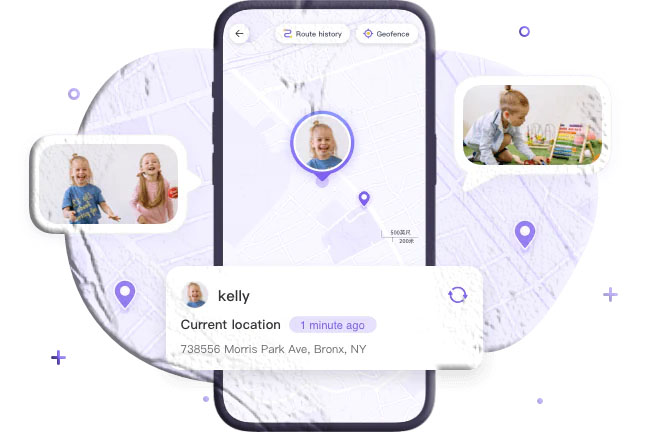
AppSpyFree displays live location on a map, supports geofence creation, and stores recent location history for review. Typical parent app features include:
- Live Location screen showing current coordinates and a map view.
- Add Geofence option to create named zones with adjustable radius.
- Location History timeline to review past movements and durations.
- Alerts and Notifications for geofence entry/exit and other events.
The app’s interface is designed to make these functions accessible from a single parent account.
Installation and Binding Checklist
Before you begin, prepare the following:
- Two devices (parent and child) with internet access.
- AppSpyFree parent app installed on the parent device.
- AppSpyFree child app installed on the child device.
- Account credentials for the parent account.
- Binding code or QR code generated by the parent app.
- Permission walkthrough completed on the child device.
Follow the binding process carefully and test notifications immediately after setup.
Data Retention and History Limits
Many family tracking apps limit how long they keep location history. A common retention window is 15 days, but this varies by provider. Check the app’s settings to confirm:
- How many days of history are available.
- Whether history can be exported or deleted.
- What data is included (timestamps, coordinates, addresses, duration at stops).
Understanding retention helps families manage storage and privacy expectations.
Communication and Emergency Use
A location tracker is most effective when combined with clear communication:
- Prearranged check‑ins. Agree on times or triggers for the child to call or message if plans change.
- Emergency procedures. Teach children how to call for help and how to use location sharing in urgent situations.
- Shared responsibilities. Decide who receives alerts and who responds when a geofence is breached.
Use the tracker as one element of a broader family safety plan.
When Tracking Might Not Work
Tracking can fail or be limited in certain scenarios:
- No network coverage. Rural or underground locations may prevent updates.
- Device turned off. A powered‑off phone cannot report location.
- Permissions revoked. If background location is disabled, the app cannot update.
- Battery saver modes. Aggressive power management can suspend background processes.
Plan for these contingencies by teaching children how to report their location and by setting realistic expectations.
FAQs
How do I install a location tracker on a phone? Install the parent version of AppSpyFree on your device and the child version on the tracked device. Create an account on the parent app, generate a binding code, and enter that code on the child device. Grant the requested permissions on the child device, including background location access and any keep‑alive settings. Test live updates and geofence alerts after setup.
Is tracking my child legal? Parents generally have the right to monitor minor children for safety. Laws vary by jurisdiction, so check local regulations if you have concerns. Openly discuss tracking with older children and set clear family rules to respect privacy while maintaining safety.
How often does the tracker update location? Update frequency depends on app settings and device conditions. Many trackers offer real‑time updates or configurable intervals (for example, every 1–5 minutes). Higher frequency provides more detail but uses more battery.
Where do I find the live location in the app? Open AppSpyFree and go to the Live Location screen. The map will display the tracked device’s current position. Use the refresh control to request an immediate update if needed.
How do I set a geofence? In the parent app, go to Live Location and choose Add Geofence. Name the geofence, select the center point (current location or a searched place), adjust the radius, and save. Set active times if the app supports scheduling.
How do I view location history? Open Live Location and select Location History or Timeline. Choose the date you want to review and scroll through the recorded stops and routes. Note the retention period for stored history (for example, 15 days).
How many days of history can I query? Retention varies by app. AppSpyFree commonly provides a 15‑day history window. Check the app’s settings for exact limits.
What if the app stops updating? Check permissions, network connectivity, and battery optimization settings. Restart the device and confirm the app is allowed to run in the background.
External Resources
- Search for AppSpyFree on Google Play or the App Store to download the parent and child versions.
- Use Google Maps for address lookups and route context when reviewing location history.
Final Notes
A location tracker is a practical tool for family coordination and safety when used thoughtfully. Clear communication, appropriate permissions, and sensible geofence settings make tracking effective without becoming intrusive. AppSpyFree provides the core features families need: live location, geofencing, and recent location history. Configure update frequency and battery settings to match your family’s needs, and review history and alerts together to keep everyone informed and comfortable.