
Introduction
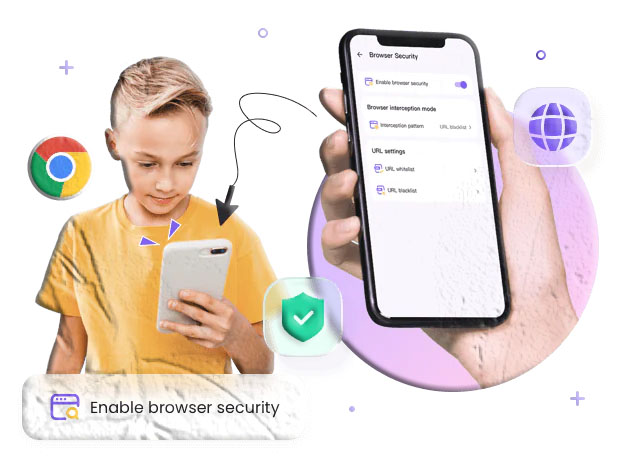
Parents today face a different landscape than previous generations: children grow up online, and the web is where they learn, socialize, and explore. Browser monitoring gives families a way to understand what kids see and do online, reduce exposure to harmful content, and create healthy digital habits. This guide explains browser monitoring in plain language, walks through how to set up and use AppSpyFree for web oversight, and offers practical guidance for balancing safety with trust. The focus is neutral and informational: what browser monitoring does, how it works, what to expect, and how to use it responsibly.
How Browser Monitoring Works
Browser monitoring collects and organizes information about the websites visited on a device so an authorized adult can review activity from a central dashboard. The technical approach varies by platform and product, but the common elements are:
- Data capture — The monitoring component records visited URLs, search queries, page titles, and timestamps. Some solutions also capture page previews or thumbnails.
- Filtering and blocking — Rules are applied to block or restrict access to categories of sites (adult content, gambling, malware, social media) or to specific URLs.
- Categorization — Sites are grouped into categories such as Education, Social, Entertainment, or Adult to make review faster and more meaningful.
- Real‑time alerts — Parents can receive notifications when a child visits a flagged site, searches for risky terms, or attempts to access blocked content.
- Remote management — Settings, whitelists, blacklists, and schedules are controlled from a web dashboard or mobile app so parents can adjust protections without handling the child’s device.
Platform differences matter. Android and iOS handle permissions and background access differently; some features may require specific OS versions or additional configuration. App store listings for AppSpyFree on Google Play or the Apple App Store provide the most current compatibility details.
Preparing to Use Browser Monitoring
Before installing any monitoring tool, prepare both the parent and the child’s devices and plan how monitoring will be used.
Checklist before setup
- Confirm device ownership or permission — Make sure you have the legal right to manage the device or explicit consent from the account holder.
- Decide goals — Are you focused on blocking explicit content, limiting social media during homework hours, or tracking search queries? Clear goals guide configuration.
- Choose a primary administrator — Limit dashboard access to one or two trusted adults.
- Charge devices and connect to Wi‑Fi — A stable connection and full battery reduce setup interruptions.
- Create a secure account — Use a unique email and a strong password for the monitoring account; enable two‑factor authentication if available.
Planning reduces friction and helps ensure the monitoring solution functions as intended.
Step by Step Setup with AppSpyFree
The following is a general, responsibly framed workflow for setting up browser monitoring using AppSpyFree. Always follow the official instructions in the app store listing for the most accurate steps.
1. Create an AppSpyFree account
- Register using a secure email address.
- Verify your email and complete any identity checks required by the service.
2. Install the app on the parent device
- Download AppSpyFree from Google Play or the Apple App Store if available.
- Sign in to the app and familiarize yourself with the dashboard layout and settings.
3. Prepare the child’s device
- Back up important data before making changes.
- Ensure the device is updated to a supported OS version.
- Connect the device to Wi‑Fi for faster installation and syncing.
4. Install the monitoring component on the child’s device
- Follow the developer’s installation instructions precisely.
- Grant the permissions requested for web activity monitoring and content filtering.
- If the platform requires additional configuration (for example, enabling accessibility services on Android or adjusting content restrictions on iOS), follow the prompts carefully.
5. Pair the devices
- Use the app’s pairing method (code, QR scan, or account login) to bind the child’s device to your AppSpyFree account.
- Confirm the device appears in your dashboard and that initial data has synced.
6. Configure browsing rules
- Set categories to block — Choose broad categories such as Adult, Gambling, or Malware.
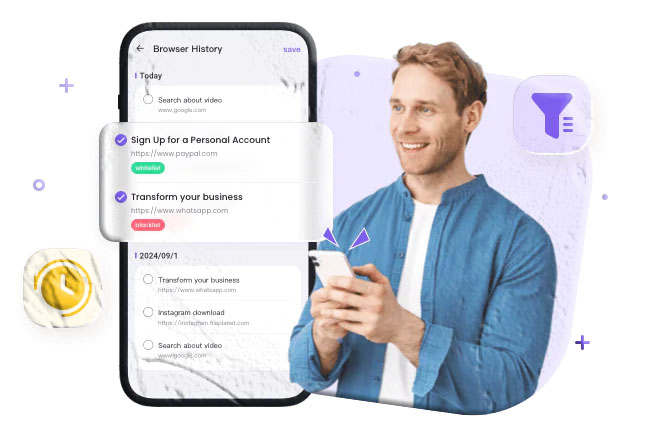
- Whitelist trusted sites — Add educational or frequently used family sites to a safe list.
- Blacklist specific URLs — Add any sites you want to block explicitly.
- Create schedules — Limit browsing during homework or bedtime hours.
- Enable alerts — Turn on notifications for visits to flagged sites or suspicious search queries.
7. Test and verify
- Make a few test visits to allowed and blocked sites to confirm the rules behave as expected.
- Check that alerts arrive and that the dashboard shows accurate timestamps and URLs.
8. Maintain and update
- Keep the app and device OS updated.
- Review and adjust filters as the child grows and needs change.
- Periodically change account passwords and review who has dashboard access.
Core Features Explained
Understanding the features helps you choose sensible settings and interpret the data you see.
Browsing History and Search Monitoring
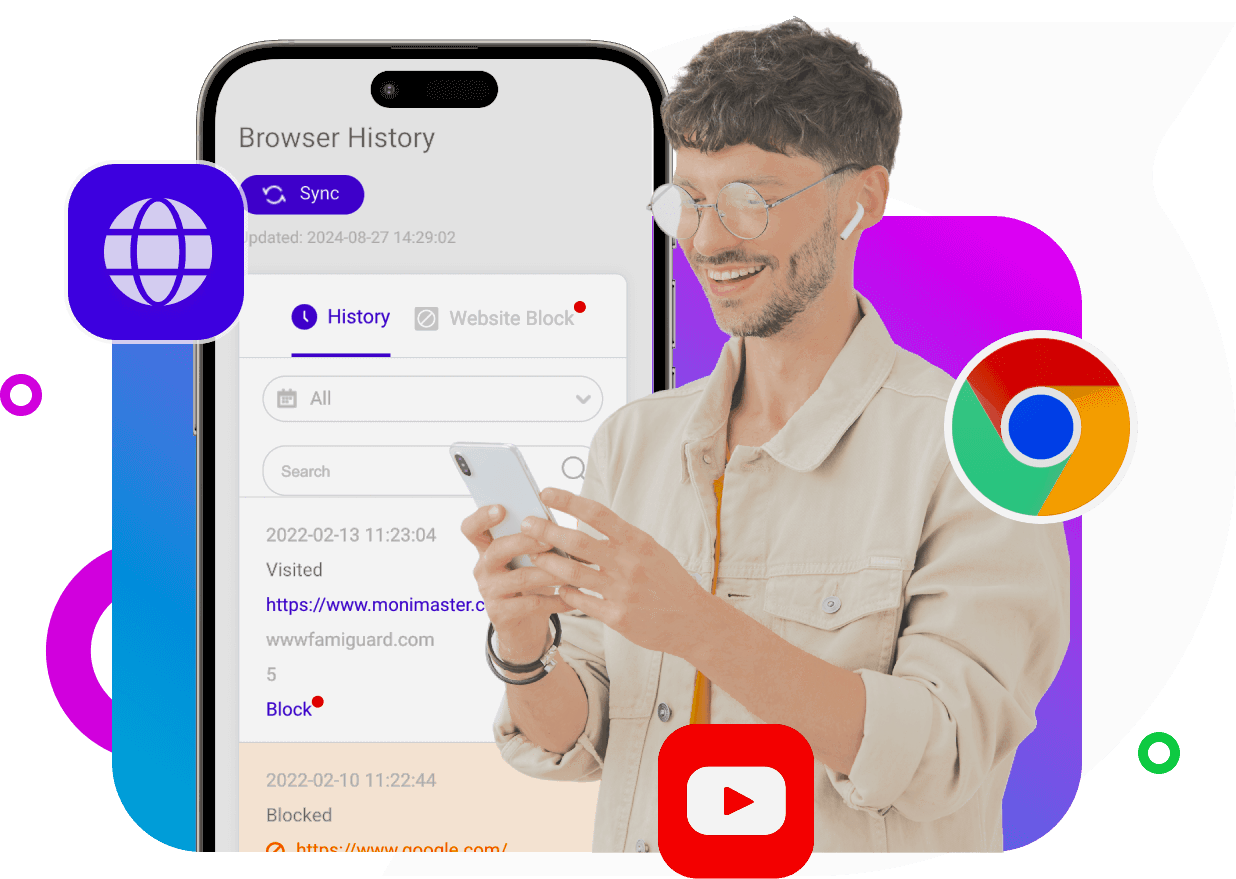
- What it shows — URLs visited, page titles, search queries, and timestamps.
- How to use it — Look for patterns: repeated visits to the same site, late‑night searches, or sudden interest in risky topics.
- Limitations — Private browsing modes, some encrypted search engines, or in‑app webviews may not always be captured.
Website Blocking and Filtering
- Category blocking — Block entire categories such as Adult, Violence, or Gambling.
- Custom blacklists — Add specific domains or pages you want to block.
- Whitelists — Ensure essential educational or family sites remain accessible.
- Granularity — Some solutions allow per‑device or per‑user rules, which is useful for shared devices.
Time Controls and Schedules
- Daily limits — Restrict total browsing time per day.
- Bedtime and homework schedules — Block web access during specific hours.
- Temporary overrides — Allow short exceptions for special occasions.
Real‑time Alerts and Notifications
- Trigger types — Visits to blocked categories, searches for risky terms, or attempts to access blacklisted sites.
- Delivery — Alerts can be pushed to the parent app, sent by email, or shown in the dashboard.
- Actionable alerts — Use alerts to start a conversation or to temporarily tighten restrictions.
Reporting and Insights
- Weekly summaries — High‑level reports showing most visited categories and top sites.
- Detailed logs — Full lists of URLs and timestamps for deeper review.
- Trend analysis — Identify shifts in behavior over time, such as increased social media use or new interests.
Practical Use Cases and Scenarios
Browser monitoring is flexible and can be tailored to different family needs. Below are common scenarios and recommended configurations.
Young Children Learning to Browse
- Goal — Keep exposure age‑appropriate while allowing exploration.
- Configuration — Block adult and violent categories, whitelist educational sites, set generous daily limits, and enable alerts for attempts to access blocked content.
- Conversation approach — Explain why certain sites are blocked and encourage asking for help when they find something confusing.
Preteens and Early Teens
- Goal — Encourage responsible browsing while preventing exposure to harmful content.
- Configuration — Use category filters, schedule limits for homework and bedtime, and enable alerts for suspicious searches. Allow more autonomy during supervised times.
- Conversation approach — Discuss online reputation and why some content is risky; involve them in setting reasonable rules.
Teens with Growing Independence
- Goal — Balance privacy with safety as responsibility increases.
- Configuration — Move from constant monitoring to periodic reviews. Use alerts for high‑risk categories and maintain open channels for discussion.
- Conversation approach — Negotiate monitoring levels and set review checkpoints; emphasize trust and consequences.
Addressing Specific Concerns
- Bullying or harassment — Enable alerts for searches or visits related to bullying; preserve logs and escalate to school or authorities if needed.
- Exposure to explicit content — Block adult categories and blacklist specific sites; discuss why such content can be harmful.
- Excessive distraction — Use schedules and site blocking during homework hours to reduce interruptions.
Responsible Use and Legal Considerations
Monitoring should be used thoughtfully and lawfully. Key principles include:
- Know the law — Regulations vary by country and region. Parents commonly have the right to monitor devices they own or devices used by minor children, but local rules and workplace or school policies may impose limits.
- Be transparent with older children — Open conversations about monitoring preserve trust and teach digital responsibility.
- Limit scope and duration — Use monitoring to address specific safety concerns rather than as a permanent surveillance measure.
- Protect data — Treat collected logs as sensitive information; restrict access and secure accounts.
- Respect third parties — Messages and browsing involve other people; handle their information responsibly and avoid sharing private conversations unnecessarily.
When in doubt about legal boundaries, consult local legal guidance.
Troubleshooting and Maintenance
Even well‑configured monitoring systems can encounter issues. This section covers common problems and how to resolve them.
No Browsing Data Appearing
- Check connectivity — Ensure the monitored device is online and can sync.
- Verify permissions — Confirm the app has the required permissions to read browser history and access network activity.
- Restart devices — Reboot both the monitored device and the parent’s device or dashboard.
- Update software — Install the latest app and OS updates.
Blocked Sites Still Accessible
- Confirm rule scope — Ensure the blacklist applies to the correct device or user profile.
- Check alternative access — Some apps use in‑app browsers or VPNs that bypass filters; block or restrict those apps if necessary.
- Clear caches — Cached pages may appear even after a site is blocked; clear browser cache and test again.
Alerts Not Arriving
- Notification settings — Verify that push notifications and email alerts are enabled in the dashboard and on the parent’s device.
- Server delays — Large data transfers or intermittent connectivity can delay alerts; allow time for sync.
- Account limits — Some plans limit alert frequency; review your subscription details.
Performance or Battery Issues
- Background activity — Monitoring apps that run continuously can affect battery life; adjust sync frequency if the app allows it.
- Optimize settings — Disable features you don’t need, such as continuous page previews, to reduce resource use.
If problems persist, consult the app’s official support resources or the app store listing for troubleshooting guidance.
FAQs
How does browser monitoring differ from parental controls built into the device? Built‑in parental controls typically offer basic time limits and content restrictions. Browser monitoring provides more detailed visibility into visited URLs, search queries, and real‑time alerts, plus centralized management across multiple devices.
Can browser monitoring capture private browsing or incognito sessions? Some monitoring solutions capture activity even in private modes, depending on how the browser and OS handle history. Others cannot capture incognito sessions. Test your chosen configuration to understand its limits.
Will monitoring slow down the device or drain the battery? Monitoring apps that sync frequently or capture page previews can use additional resources. Adjust sync intervals and disable nonessential features to reduce impact.
Is it legal to monitor my child’s browsing? Laws vary. Parents commonly have the right to monitor devices they own or devices used by minor children, but local regulations and school policies may impose limits. Consult local legal guidance if unsure.
Can monitoring block specific search engines or only websites? Many solutions allow filtering by search engine and can block or restrict specific search providers. Check the app’s feature list for search filtering capabilities.
How do I whitelist an educational site that gets blocked by mistake? Add the site’s exact URL to the whitelist in the dashboard. Some systems also allow temporary overrides for specific sessions.
Where can I find AppSpyFree? Search for AppSpyFree on Google Play or the Apple App Store to view the official listing, feature details, and installation instructions.
Final Thoughts
Browser monitoring is a practical tool for families who want to guide online behavior, reduce exposure to harmful content, and create healthy digital routines. AppSpyFree is one example of a solution that centralizes browsing history, filtering, and alerts so parents can manage web access from a single dashboard. The most effective approach combines technical controls with open communication: set clear expectations, involve children in rule‑making, and scale monitoring as trust and responsibility grow.