
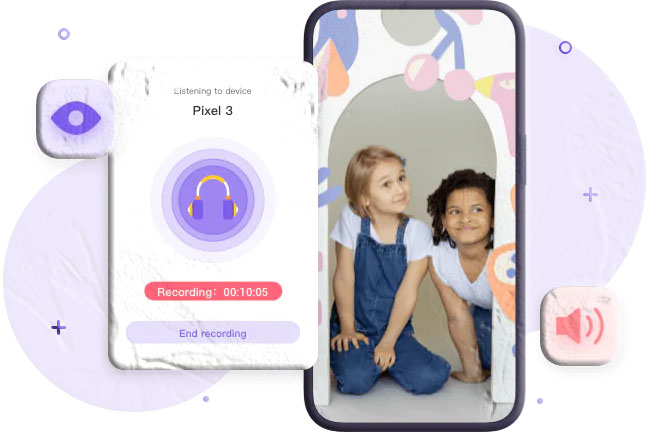
Monitoring a child’s environment from a distance can help parents respond quickly when something seems off, confirm a child’s safety, or simply gain peace of mind during busy days. This guide explains how remote monitoring works, what features are commonly available on modern phones and parental control services, how to set up and use those features responsibly, and what to consider about privacy, battery life, and legal boundaries. AppSpyFree is mentioned here as a resource name for parents researching monitoring options; this post does not promote any single product but focuses on practical, neutral information parents can use to make informed choices.
What remote monitoring of a child’s surroundings means
Remote monitoring refers to the ability to use a parent’s device to access certain sensors on a child’s phone—most commonly the microphone and camera—to hear or see what’s happening nearby in real time or to record ambient audio for later review. Modern parental control systems and built‑in phone features can enable:
- Live audio listening (one‑way audio) so a parent can hear ambient sound near the child’s phone.
- Ambient recording that captures and stores short audio clips for later review.
- Remote camera view that streams the front or rear camera feed to a parent’s device.
- Scheduled monitoring that runs at set times or on demand.
- Location and context cues that help interpret what ambient audio or video reveals (e.g., background traffic, school bell, or a public place).
These capabilities are intended to help parents detect immediate risks, confirm a child’s whereabouts, or gather context when a child is unable to respond. They are not a substitute for open communication and trust-building between parent and child.
Common features and how they work
Ambient recording (microphone activation)
Ambient recording lets a parent remotely activate the child’s phone microphone to capture surrounding sounds. Recordings can be saved to the parent’s account for later playback. Typical behaviors include:
- On‑demand activation: Parent triggers recording in real time.
- Scheduled recording: Parent sets times when recordings should start automatically.
- Saved clips: Audio files are stored for later review.
How it functions technically: the parent’s console sends a command to the child’s device (via the internet) to enable the microphone and stream or record audio. The device’s operating system and the parental control service manage permissions and storage.
Live camera access (front or rear)
Remote camera access streams video from the child’s phone camera to the parent’s device. This can be used to check surroundings visually and, in some systems, to toggle the flashlight for low‑light situations.
Common controls:
- Switch between front and rear cameras.
- Turn flashlight on/off.
- View live feed without alerting the child (depending on app and device permissions).
One‑way audio (live listening)
One‑way audio allows a parent to listen to the environment without creating a two‑way call. It’s useful when you want to hear what’s happening without interrupting the child.
Recording and storage
Recorded audio or video is typically stored in the parent’s account on the service provider’s servers or locally on the parent’s device. Storage duration, file formats, and access controls vary by provider.
Why parents use remote monitoring
Parents choose remote monitoring for several practical reasons:
- Immediate safety checks: Confirm a child’s environment when they can’t answer a call.
- Context for unusual behavior: Understand what happened after a concerning message or call.
- Support for younger children: Verify that a child is in a safe place (e.g., at a caregiver’s home).
- Evidence collection: Preserve audio or video that may be needed to explain an incident to caregivers, school staff, or authorities.
This guide focuses on responsible, lawful use and practical setup rather than promoting any single product. AppSpyFree is included as a reference name parents may encounter while researching monitoring tools.
Built‑in phone options vs. parental control services
Built‑in options
Both Android and iOS include features that help parents manage devices and monitor activity:
- iOS Screen Time and Family Sharing: Manage app access, set downtime, and view usage reports. Screen Time does not natively provide ambient recording or remote camera access, but it helps parents control device use and see app activity.
- Google Family Link: Manage apps, set screen time limits, and view basic activity. Like Screen Time, Family Link focuses on controls and reporting rather than live audio/video monitoring.
These built‑in tools are useful for managing device behavior and app access but do not typically include remote microphone or camera activation.
Parental control services and apps
Some parental control services available through official app stores offer live listening, ambient recording, and remote camera features. When evaluating such services, check:
- Source: Only install apps from official stores (Google Play or Apple App Store).
- Permissions: Review what permissions the app requests and why.
- Transparency: Look for clear privacy and data retention policies.
- Compatibility: Confirm the app supports the child’s device model and OS version.
AppSpyFree may appear in searches as a resource that lists or reviews monitoring tools; use such resources to compare features and confirm availability on official app stores.
Step‑by‑step: setting up remote monitoring responsibly
Below is a general, platform‑neutral setup flow. Exact steps vary by app or service.
- Choose a reputable solution available on Google Play or the App Store. Verify developer details, reviews, and permissions before installing.
- Install the parent app on your device. Create an account and complete any identity verification required by the service.
- Install the companion app on the child’s device. Follow the provider’s instructions for pairing devices. Some systems require a binding code or QR code scan.
- Grant required permissions on the child’s phone. Typical permissions include microphone, camera, location, and background activity. Grant only what is necessary for the features you intend to use.
- Set monitoring rules and schedules. Configure when live listening or ambient recording is allowed and whether the child receives any notification.
- Test the connection. Run a short live listen or camera check while both devices are nearby to confirm functionality.
- Review storage and retention settings. Decide how long recordings are kept and whether they are stored locally or in the cloud.
- Discuss boundaries with your child. Explain why monitoring is in place, what will be recorded, and how you will use the information.
Practical scenarios and examples
Scenario 1: Late pickup at a public place
A parent receives a message that pickup is delayed. Using live listening, the parent confirms the child is in a busy café and hears the background noise and a caregiver’s voice, which reassures them until pickup arrives.
Scenario 2: Conflicting reports from school
After a report of an incident at school, ambient recordings from the child’s device help the parent understand the sequence of events and provide context when speaking with school staff.
Scenario 3: Young child left with a caregiver
A parent uses a scheduled camera check to confirm the child is with the expected caregiver and that the environment looks safe.
Safety, privacy, and legal considerations
Remote monitoring raises important privacy and legal questions. Use the following checklist to stay within ethical and legal boundaries:
- Know local laws: Laws about recording audio or video without consent vary by jurisdiction. In many places, recording private conversations without consent is restricted. Confirm what is legal where you live and where the child will be.
- Age and consent: Older children and teens may expect greater privacy. Discuss monitoring openly and obtain assent where appropriate.
- Purpose limitation: Use monitoring only for safety and well‑being, not for constant surveillance or punishment.
- Data security: Choose services with strong encryption and clear data retention policies. Limit who can access recordings.
- Notification and transparency: Where possible, be transparent with caregivers and older children about monitoring practices.
- Minimize scope: Grant only the permissions needed for the intended function and avoid continuous, indiscriminate recording.
Impact on device performance and battery life
Activating microphones, cameras, and background services can affect a child’s phone in these ways:
- Battery drain: Live audio and video streaming consume power. Schedule checks or use short sessions to reduce impact.
- Data usage: Streaming and uploading recordings use mobile data. Prefer Wi‑Fi when available or monitor data caps.
- Storage: Saved recordings occupy space. Configure retention limits or offload files to cloud storage if supported.
- Device responsiveness: Background monitoring services may slow older devices. Test performance after installation.
How to interpret ambient audio and camera feeds
Ambient audio and video provide context but not always a complete picture. Consider these points when interpreting what you hear or see:
- Background noise can be misleading: Traffic, music, or crowd noise may mask important details.
- Short clips may lack context: A brief recording might not show what happened before or after an event.
- Visual perspective is limited: A camera view from a phone may not capture the whole scene or identify people clearly.
- Combine signals: Use location data, timestamps, and other logs to build a fuller understanding.
Alternatives and complementary approaches
Remote listening and camera access are one set of tools. Combine them with other approaches for balanced oversight:
- Open communication: Regular conversations about safety, boundaries, and expectations build trust.
- Check‑ins: Scheduled calls or messages can be less intrusive and still effective.
- Location sharing: Use built‑in location sharing (e.g., Family Sharing, Google location sharing) to confirm whereabouts.
- Device rules: Set screen time limits and app restrictions to reduce risky behavior.
- Education: Teach children how to handle emergencies and how to seek help.
Choosing a monitoring solution: evaluation checklist
When comparing services or apps, use this checklist:
- Official distribution: Is the app available on Google Play or the App Store?
- Developer reputation: Who is the developer and what is their track record?
- Permissions transparency: Does the app explain why each permission is needed?
- Data handling: Are recordings encrypted and is retention policy clear?
- User reviews: What do other parents say about reliability and support?
- Support and updates: Is the app actively maintained and supported?
- Legal compliance: Does the provider explain legal responsibilities for recording?
AppSpyFree and similar review resources can help you compare features and confirm whether a product is listed on official app stores.
Responsible use checklist for parents
- Explain monitoring to your child in age‑appropriate terms.
- Limit monitoring to safety‑related situations.
- Use scheduled checks rather than continuous surveillance.
- Keep recordings secure and delete them when no longer needed.
- Respect caregivers’ boundaries when a child is under someone else’s supervision.
- Reassess monitoring needs as the child grows.
Troubleshooting common issues
- No connection to child’s device: Confirm both devices have internet access and the child’s app is running in the background with required permissions.
- Poor audio quality: Check microphone permissions and background noise; test in a quiet environment.
- Camera feed not available: Verify camera permission and that no other app is using the camera.
- High data usage: Switch to Wi‑Fi for scheduled recordings or reduce frequency and duration of live sessions.
- Battery drain: Reduce session length and disable continuous background monitoring.
When to involve others
If monitoring reveals a situation that may require help beyond what you can provide:
- Contact local caregivers or guardians first if the child is with someone else.
- Inform school staff if the incident occurred at school and requires their attention.
- Contact emergency services if the child is in immediate danger.
- Preserve evidence: If you need to involve authorities, keep recordings and logs intact and note timestamps.
FAQs
Can I turn a phone into a remote listening device?
Yes. Some parental control services available through official app stores include features that let a parent remotely activate a child’s phone microphone to listen or record ambient audio. Always confirm the app’s permissions and legal compliance before use.
Will the child know when I activate the microphone or camera?
Notification behavior depends on the device and the app. Some apps operate in the background without visible alerts; others show a notification or indicator. Be aware of local laws and ethical considerations about covert monitoring.
Do I need to be on the same Wi‑Fi network to use live camera or audio features?
No. Most modern parental control services use internet connectivity, so you can access live audio or video from anywhere with a network connection. However, both devices must be online.
Can ambient recordings help locate my child?
Ambient audio can provide clues—background voices, traffic, or identifiable sounds—that help infer location, but it is not a precise location tool. Combine audio with location services for better accuracy.
Are there built‑in phone features that do this without third‑party apps?
Built‑in parental controls (like Screen Time and Google Family Link) focus on app management, screen time, and usage reporting. They typically do not provide remote microphone or camera activation. For live audio or camera access, a compatible service or app is usually required.
How long are recordings stored?
Storage duration varies by service. Some providers keep recordings for a limited time; others allow parents to save clips indefinitely. Check the provider’s retention policy and configure settings to match your needs.
Final considerations
Remote monitoring can be a useful tool for parents when used thoughtfully and lawfully. It works best as part of a broader approach that includes clear communication, education, and age‑appropriate boundaries. When selecting any monitoring solution, prioritize official app store distribution, transparent permissions, secure data handling, and compliance with local laws. AppSpyFree and similar review resources can help you compare options and confirm availability on official platforms.