
Mobile numbers have evolved far beyond their original purpose of making calls. Today, a mobile number is often tied to a device, an online identity, and a set of digital services that can reveal where the device has been—if the owner has enabled location features.
Location history can be useful for many reasons:
- Retracing your steps to find a misplaced item
- Checking where a lost phone may have been
- Helping parents understand their child’s daily movements
- Reviewing travel routes or commutes
This article explores three effective, built‑in methods for viewing the location history associated with a mobile number—without relying on external tracking tools. These methods work only when you have authorized access to the device or account.
Part 1: How to Track Location History of a Mobile Number
Location history is not stored by the mobile number itself. Instead, it is stored by the device and the account (Google or Apple ID) linked to that number. When location services are enabled, the device periodically records where it has been.
Below are three practical ways to view this information.
1. View Location History Through a Google Account Linked to the Mobile Number
For Android users—and for anyone using Google Maps—Google’s Location History feature is one of the most detailed ways to review past movements. When enabled, it creates a Timeline, which displays routes, visited places, and timestamps.
To use this method, the mobile number must be linked to a Google account that you are authorized to access.
How to Check Google Location History
- Open the Google Maps app or visit https://maps.google.com
- Sign in to the Google account associated with the mobile number.
- Tap the menu icon (three horizontal lines).
- Select Your Timeline.
- Choose a date from the calendar to view the recorded locations.
Why Location History May Not Appear
If you see messages like “No visited places” or “Location History is off”, it may be due to:
- Location History being disabled
- The device not being connected to the internet
- GPS being turned off
- A recent device reset
- A new phone that hasn’t synced yet
To enable Location History:
- Open Google Account Settings.
- Go to Data & Privacy.
- Find Location History.
- Turn it on and select the device linked to the mobile number.
If syncing issues occur, try signing out and back in, updating Google Maps, or restarting the device.
2. Check Significant Locations Using an Apple ID Linked to the Mobile Number
For iPhone users, Apple provides a built‑in feature called Significant Locations. This feature records frequently visited places to improve system services such as Maps, Calendar, and Photos.
This information is stored locally on the device, encrypted, and accessible only when you unlock the phone.
How to View Significant Locations on an iPhone
- Open Settings.
- Tap Privacy & Security.
- Select Location Services.
- Scroll down and tap System Services.
- Choose Significant Locations.
- Authenticate with Face ID, Touch ID, or your passcode.
You will see a list of recorded locations, grouped by city and date.
Limitations of Apple’s Significant Locations
- It does not provide a full timeline like Google Maps.
- It focuses on frequently visited places rather than every movement.
- It cannot be accessed remotely; you must have the device in hand.
Still, it is a reliable way to view location history tied to an Apple ID and mobile number.
3. Use Built‑In Family Location Features (Google & Apple)
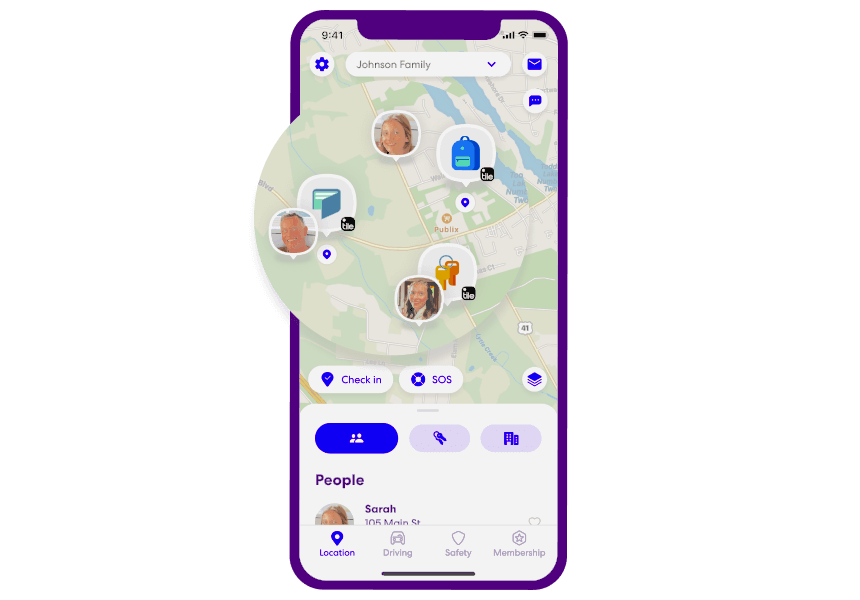
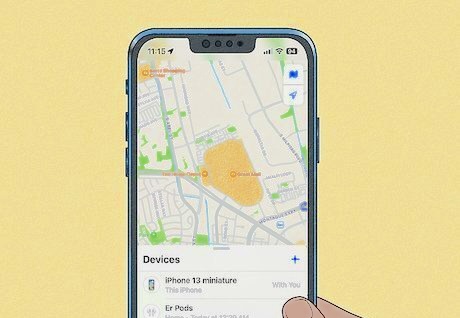
While many people search for “mobile number trackers,” modern devices already include family‑oriented location sharing tools that work without third‑party apps.
These tools allow authorized family members to view real‑time location and limited location history.
Google Family Link (Android)
Available on the Google Play Store, Family Link allows parents to:
- View their child’s device location
- See recent device activity
- Set screen time limits
- Manage app permissions
Google Family Link (Google Play Store): https://play.google.com/store/apps/details?id=com.google.android.apps.kids.familylink
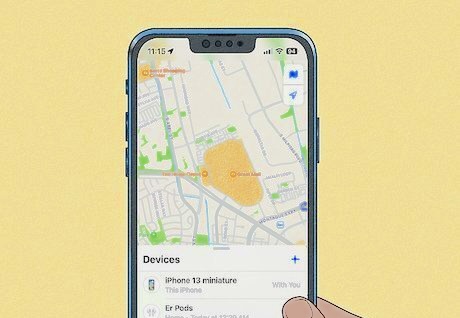
Apple Find My (iPhone)
Find My allows family members to:
- Share their location
- View device locations
- See last known locations
- Play a sound to locate a misplaced device
Find My is built into iOS and does not require additional downloads.
Why These Tools Are Useful
- They are official, secure, and designed for families.
- They do not require external tracking apps.
- They offer real‑time updates and limited history.
- They comply with platform policies and parental supervision guidelines.
Part 2: Should Parents Track a Child’s Location History?
Parents often wonder whether tracking a child’s location is appropriate. The answer depends on the child’s age, maturity, and the family’s communication style.
Reasons Parents May Choose to Track Location History
- Ensuring a child arrives safely at school or activities
- Monitoring independent travel for younger teens
- Understanding unexpected detours or delays
- Providing reassurance during emergencies
Location history can help parents identify patterns, such as:
- When a child leaves school
- Whether they visited a friend’s house
- If they took an unfamiliar route home
Balancing Safety and Privacy
As children grow older, they may seek more independence. Parents can maintain trust by:
- Explaining why location tracking is used
- Setting clear expectations
- Reviewing location data together when appropriate
Open communication helps ensure that tracking supports safety rather than creating tension.
Part 3: How to Keep Your Location History Private
Location data is sensitive. If you no longer need it stored, you can take steps to protect or delete it.
1. Delete Google Location History
In Google Maps:
- Go to Your Timeline
- Tap Settings & Privacy
- Choose Delete all Location History or Auto-delete
2. Clear Apple Significant Locations
On iPhone:
- Go to Settings → Privacy & Security → Location Services → System Services → Significant Locations
- Tap Clear History
3. Turn Off Location Services When Not Needed
Both Android and iOS allow you to disable:
- GPS
- Wi‑Fi scanning
- Bluetooth scanning
- Background location access
4. Review App Permissions
Some apps request location access unnecessarily. Check permissions regularly to ensure only essential apps have access.
Frequently Asked Questions
Can I track someone’s location history using only their mobile number?
No. A mobile number alone cannot reveal location history. You must have authorized access to the device or the Google/Apple account linked to it.
Can I view location history without the person knowing?
No. Accessing someone’s location without permission is illegal in most regions. Only track your own devices or a child’s device with proper parental authorization.
Does Google Maps show every movement?
Google Maps Timeline shows recorded locations when Location History is enabled, but it may not capture every moment if GPS or internet connectivity was unavailable.
Can I track an iPhone’s location history remotely?
You can view the device’s current or last known location through Find My, but Significant Locations can only be viewed directly on the device.
Does deleting location history affect navigation apps?
No. Navigation apps will still function normally, but personalized recommendations may be less accurate.
Conclusion
Mobile numbers are now deeply connected to our digital lives, including the devices and accounts that store location information. While a mobile number itself does not track movement, the Google or Apple account linked to it may record location history when the feature is enabled.
By using built‑in tools such as:
- Google Maps Timeline
- Apple Significant Locations
- Google Family Link
- Apple Find My
you can responsibly view location history for your own device or for a child’s device with proper authorization.
Understanding how location history works—and how to protect it—helps families stay informed, safe, and in control of their digital footprint.