
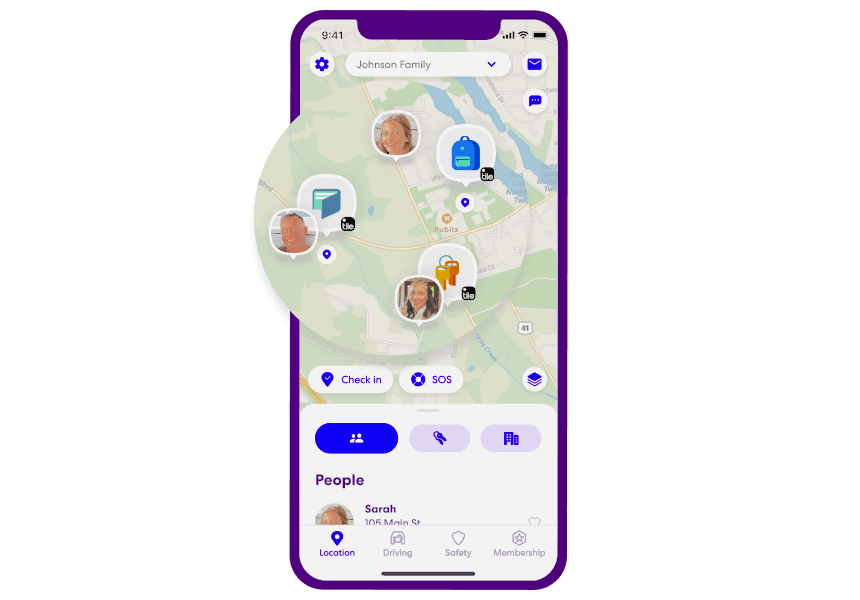

In today’s fast-paced world, families are constantly on the move. Between school, sports practices, long commutes, and business trips, keeping track of everyone’s whereabouts can feel like a full-time job. Thankfully, the smartphones we carry in our pockets every day offer powerful, built-in solutions to bridge that physical distance.
Locating family members through their phones is no longer a complex technological feat reserved for secret agents. With the right permissions and applications, it is a standard safety feature that provides immense peace of mind. Whether you are ensuring your teenager arrived at school safely, checking if your spouse is stuck in traffic, or looking out for an elderly parent who lives alone, mobile location sharing is an invaluable tool.
This comprehensive guide will walk you through the most effective and secure methods for locating family members using both iOS and Android devices. We will explore built-in operating system features, highlight top-tier family safety applications available on official app stores, and discuss the critical importance of balancing digital safety with trust and privacy.
The Core Benefits of Digital Location Sharing
Before diving into the “how-to,” it is important to understand the “why.” Integrating location tracking into your family’s routine offers several distinct advantages:
-
Immediate Peace of Mind: The primary benefit is the reduction of anxiety. A quick glance at a digital map can confirm a loved one has safely reached their destination, eliminating the need for constant “Are you there yet?” text messages.
-
Emergency Response: In the event of an accident, a vehicle breakdown, or a medical emergency, knowing a family member’s exact GPS coordinates allows you to dispatch help immediately, even if they are disoriented or unable to communicate clearly.
-
Streamlined Coordination: For busy households, location sharing simplifies logistics. You can see when your partner leaves the office to time dinner perfectly or coordinate picking up kids from sprawling sports complexes.
-
Protecting Vulnerable Relatives: For families caring for elderly members, particularly those experiencing cognitive decline or mobility issues, location tracking provides a crucial safety net that allows for continued independence while ensuring they do not wander off and become lost.
Note: The foundation of all ethical location sharing is consent. Except in the case of managing young children, all tracking should be discussed openly and agreed upon by participating family members.
Method 1: Using Apple Family Sharing (iPhone)
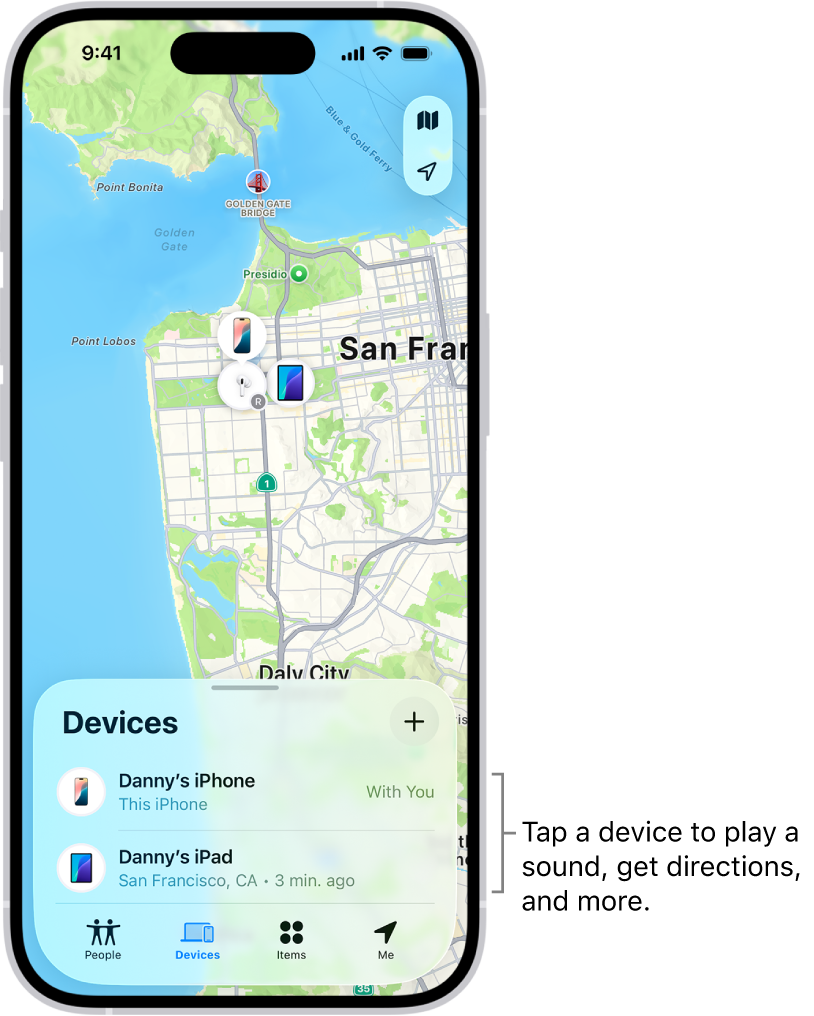
For households primarily using Apple products, the iOS ecosystem provides a seamless, highly secure built-in method for location sharing via the “Find My” network. Once “Family Sharing” is configured, authorized members can view each other’s locations on an interactive map.
Step-by-Step Setup for iPhone
Before you can view a location, you must ensure the Family Sharing group is active. The family organizer can set this up by navigating to Settings > [Your Name] > Family Sharing and inviting members via their Apple IDs.
Once the family group is established and members have opted to share their location:
-
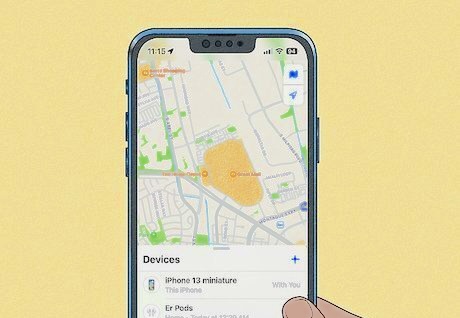
Open the Find My application on your iPhone or iPad. (This app is pre-installed on all modern iOS devices).
-
Tap the People tab located at the bottom left corner of the screen.
-
A list of your family members who have actively chosen to share their location with you will appear.
-
Tap on a specific family member’s name.
-
The map will zoom in on their real-time location. From this menu, you can also set up automated notifications (e.g., “Notify me when [Name] leaves school”).
Method 2: Using Google Maps Location Sharing (Android & iOS)
If your household is a mix of Android and iPhone users, or if you prefer a universally recognizable interface, Google Maps offers an incredibly robust native location-sharing feature. Because almost every smartphone has Google Maps installed, this is one of the most accessible methods available.
Step-by-Step Setup for Google Maps
To view a family member’s location, they must initiate the share from their device first:
-
Ask your family member to open the Google Maps app on their smartphone.
-
Have them tap their Profile Picture or initial in the top right corner of the screen.
-
Select Location Sharing from the dropdown menu.
-
Tap the Share Location button (or “New Share”).
-
They can choose to share their location for a specific duration (e.g., “For 1 hour”) or “Until you turn this off.”
-
They will then select your contact name to send the tracking link.
Once they have shared their location with you, tracking them is simple:
-
Open Google Maps on your phone.
-
Tap your Profile Picture and select Location Sharing.
-
Tap the icon or name of the family member you wish to locate. The map will immediately center on their real-time position and display their device’s current battery percentage.
Method 3: Dedicated Family Tracking Applications
While built-in tools like Find My and Google Maps are excellent for basic location viewing, dedicated family safety applications offer a more comprehensive suite of features. These applications are designed specifically for parents who need more oversight, such as route histories and automated alerts.
AirDroid Parental Control (Family Locator)
For parents looking to maintain a digital safety net over their children’s whereabouts, AirDroid Parental Control offers a highly focused Family Locator feature. It moves beyond simple dot-on-a-map tracking, providing historical data and boundary alerts.
Key Features of AirDroid:
-
Real-Time Tracking: View precise GPS coordinates at any moment.
-
Location History: Review a timeline of where the device has traveled throughout the day.
-
Geofencing (Virtual Boundaries): Draw digital fences around safe zones like a home, school, or relative’s house. The app will automatically push a notification to your phone the moment your child crosses these boundaries.
How to Use AirDroid:
-
Download the AirDroid Parental Control app on the parent’s device from the official app store and create an account.
-
Download the companion app (AirDroid Kids) on the child’s device.
-
Follow the on-screen prompts to bind the two devices using a secure code and grant the necessary location permissions.
-
Open the parent app, tap the GPS icon on the dashboard, and view the live map. You can tap the refresh icon for immediate updates.
Other Highly Recommended Apps (Available on Official Stores)
The official app stores offer several other reputable family tracking platforms, each catering to slightly different needs:
-
Google Family Link: Google’s official parental control tool. It is entirely free and allows parents to track their child’s Android device, manage screen time, and restrict app downloads. Download Family Link on Google Play
-
Life360: Arguably the most comprehensive family tracking platform on the market. Life360 organizes families into “Circles” and provides incredibly accurate tracking, place alerts, and, on premium tiers, advanced driving safety telematics (monitoring speed and hard braking). Download Life360 on Google Play
-
Glympse: Perfect for temporary sharing. If you just want to let someone track you while you drive home in a storm, you can send them a “Glympse”—a web link that shows your live location for a set amount of time and then automatically expires. Download Glympse on the App Store
The Emotional Blueprint: Balancing Technology with Trust
While the technology to locate a family member is impressive, it is crucial to recognize the emotional implications of using it. Technology should be a tool that supports the family dynamic, not a weapon that undermines it.
Avoid “Helicopter Tracking” Continuously monitoring a teenager’s or spouse’s every movement without cause can quickly breed resentment. It signals a lack of trust and can feel highly invasive. Location tracking should be viewed as a safety net, not a surveillance camera.
Prioritize Open Communication Before activating any location-sharing features, hold a family meeting. Discuss why you want to use the technology. Explain that the goal is safety and convenience—like knowing when to start cooking dinner or ensuring a new driver made it to their destination. Frame it as a mutual benefit rather than a parental mandate.
Establish Clear Boundaries Agree on when it is appropriate to check locations. For example, a family might agree that it is okay to check the map if someone is driving in bad weather or is late coming home, but not to casually spy on them while they are hanging out with friends. Respecting these boundaries ensures that the technology remains a comforting presence rather than an oppressive one.
Conclusion
The ability to locate family members through their phones is one of the most practical applications of modern mobile technology. By utilizing built-in services like Apple’s Find My or Google Maps, or by downloading dedicated, policy-compliant applications like AirDroid or Life360, families can stay connected regardless of physical distance.
However, the success of these tools relies entirely on the foundation of trust upon which they are built. When implemented with transparency, consent, and open communication, location-tracking technology transforms from a source of anxiety into a powerful tool that brings families closer together and keeps them safe.
Frequently Asked Questions
Can I use my phone to find someone else’s phone if they lose it? Yes, if they have shared their location with you previously via apps like Find My or Google Maps, you can use your phone to see their device’s last known location. Additionally, you can log into their iCloud (Apple) or Google (Android) account on a web browser via “Find My Device” to ping or lock the lost hardware.
Can I use Google Family Link to track an iPhone? Yes, Google Family Link functions cross-platform. While the child device management features (like app blocking) are more robust on Android, you can install the Family Link app on an iPhone to view the child’s location, provided they are part of your Google Family group and the app has the correct permissions.
Can I secretly track a family member’s location? Ethically and legally, tracking an adult or a teenager without their explicit consent is an invasion of privacy and is strongly discouraged. Reputable applications sourced from official app stores are designed with transparency in mind and will frequently notify the user that their location is being shared. Secret tracking apps often rely on malicious software that compromises the security of the device.
How can I keep track of multiple family members at once? Applications like Life360 or the Apple Find My network are specifically designed for this. They allow you to view multiple family members simultaneously on a single, unified digital map, rather than having to check individual tracking links.
Why can’t I see my child’s location on my iPhone? If a location is not updating in the Find My app, check the following:
-
Ensure the child’s phone has cellular data or Wi-Fi connectivity.
-
Verify that Location Services are turned on in their Settings menu.
-
Confirm that the child has not manually disabled “Share My Location” within their own Find My settings.
-
Ensure both phones are logged into the correct iCloud accounts associated with your Family Sharing group.

Add comment