


Recording a phone conversation can be incredibly helpful in many everyday situations. Whether you’re capturing important instructions, documenting an interview, reviewing business discussions, or simply preserving meaningful conversations, having a reliable way to record calls can make a significant difference.
However, call recording works differently across devices, and the available options vary depending on your phone model, operating system, and local laws. This guide walks you through practical, device‑friendly methods to record phone calls on both Android and iPhone — without relying on unsupported or unverified third‑party apps.
You’ll learn how to use built‑in features, native audio recorders, Google Voice, and external recording devices, along with essential legal considerations and best practices.
Understanding Call Recording on Mobile Devices
Before diving into the methods, it’s helpful to understand why call recording varies so much across devices:
- Some manufacturers include built‑in call recording, while others restrict it due to regional regulations.
- iPhone models historically lacked native call recording, though newer models have introduced limited support.
- Android devices differ by brand, with some offering robust built‑in tools and others relying on external solutions.
- Local laws may require notifying the other party, which affects how certain apps and services operate.
With that in mind, let’s explore the most reliable ways to record calls on any mobile phone.
Method 1: Use Your Phone’s Built‑In Call Recording Feature
Many Android manufacturers include a native call recording function directly in the Phone app. This is the simplest and most seamless way to record calls because it requires no additional apps or equipment.
Brands that commonly support built‑in call recording include:
- Samsung
- Xiaomi
- Oppo
- Vivo
- Motorola
- LG
- Infinix
- Realme
- Huawei
- ASUS
Brands that typically do not include built‑in call recording:
- Google Pixel
- OnePlus
iPhone Support
Apple introduced call recording on select newer models, but availability is limited and may vary by region.
How to Record a Call Using Built‑In Tools
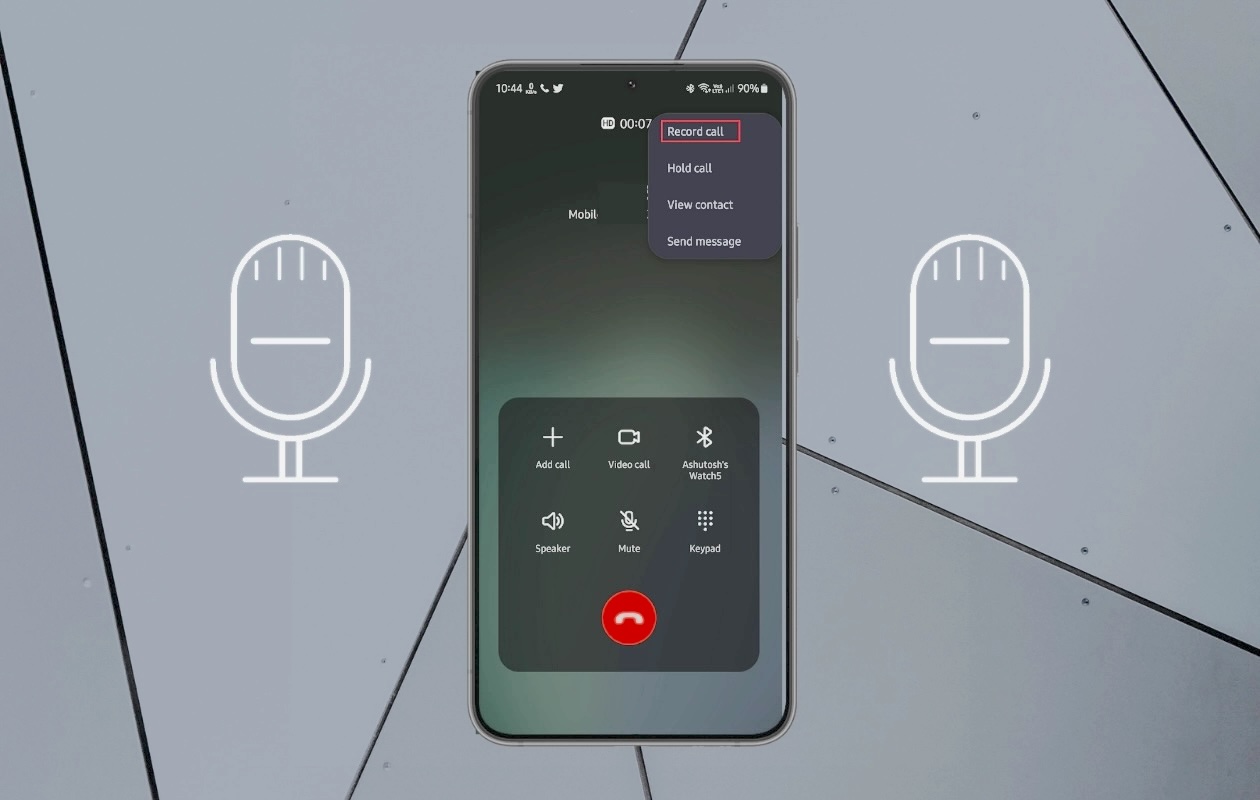
- Start or answer a call on your device.
- Look for the Record button on the call screen.
- It may appear as a circular icon or inside the call menu.
- Tap Record to begin capturing the conversation.
- Tap Stop when you’re done.
- Your recording will be saved automatically in the Phone app or your device’s internal storage.
Where to Find Your Recordings
Recordings are usually stored in:
- Phone app → Recents → Call details
- File Manager → Call Recordings folder
- Media player apps
Some Android devices also allow you to enable automatic recording for unknown callers or selected contacts.
Method 2: Use a Second Device with a Native Audio Recorder
If your phone doesn’t support built‑in call recording, using a second device is a simple and effective alternative. Nearly all phones — Android and iPhone — include a native audio recorder.
Examples of built‑in recorder apps:
- Voice Memos (iPhone)
- Recorder / Voice Recorder / Sound Recorder (Android)
This method works well when you need a quick solution without installing additional apps.
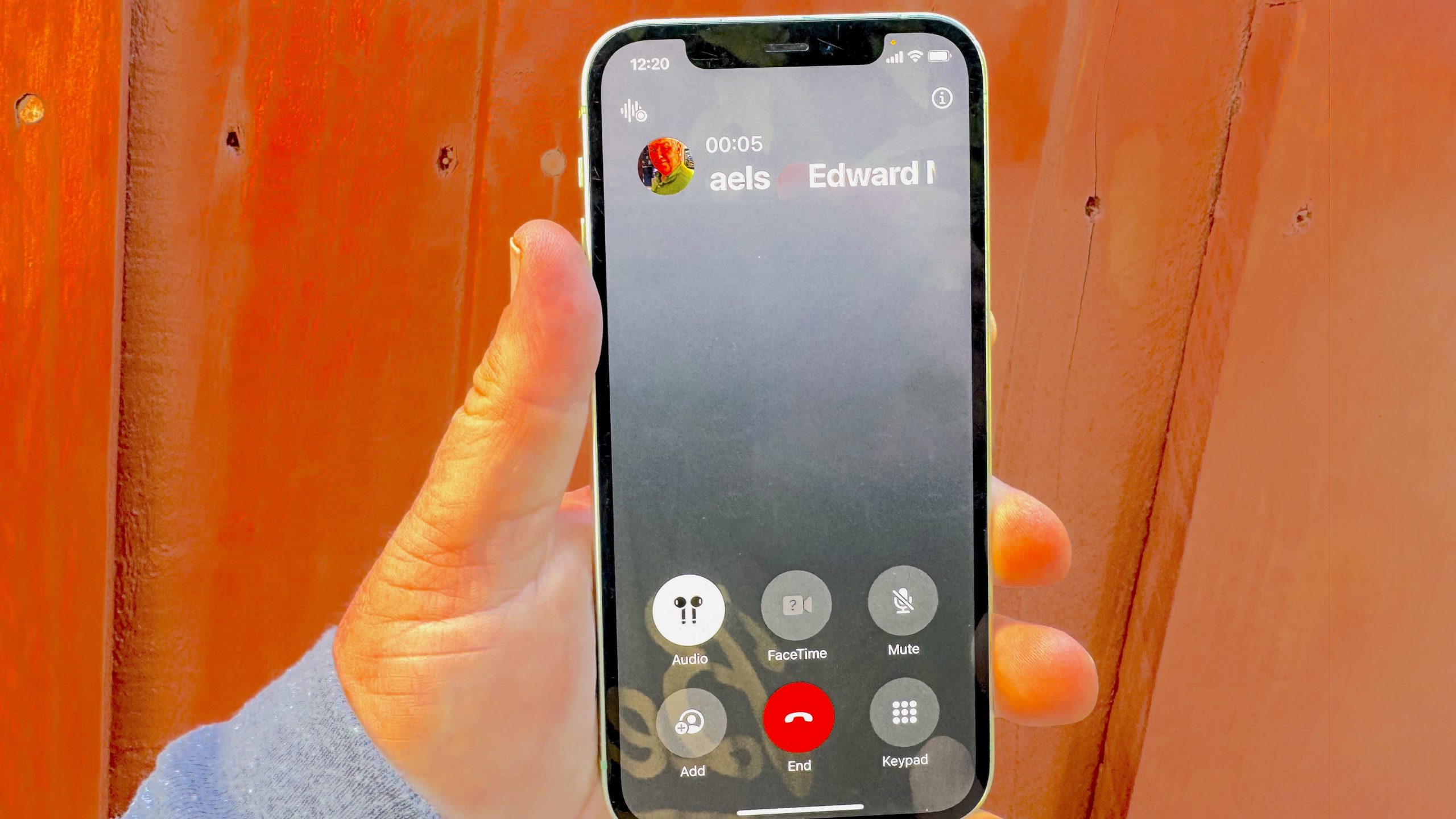
How to Record a Call Using a Second Device
- On the second device, open the built‑in Voice Recorder or Voice Memos app.
- Tap Record to begin capturing audio.
- Place the second device near your main phone’s speaker.
- On your main phone, start the call and switch to speaker mode.
- When the call ends, stop the recording on the second device.
- Save or share the audio file as needed.
This method is especially useful for interviews, meetings, or situations where you want to avoid installing apps.
Method 3: Record Incoming Calls Using Google Voice
Google Voice is one of the most reliable ways to record incoming calls on both Android and iPhone. It’s available on the Google Play Store and Apple App Store, and it automatically notifies all parties when recording begins.
Download Google Voice:
- Google Play Store:
https://play.google.com/store/apps/details?id=com.google.android.apps.googlevoice - Apple App Store:
https://apps.apple.com/app/google-voice/id318698524
Important Notes:
- Google Voice can only record incoming calls.
- All participants will hear an automated message announcing the recording.
- Recordings are stored in your Google Voice account and accessible from any device.
How to Record Calls with Google Voice
- Install and open the Google Voice app.
- Tap the menu icon and go to Settings.
- Enable Incoming call options.
- When you receive a call, press 4 on the dial pad to start recording.
- Press 4 again to stop.
- Access recordings in the Calls tab of your Google Voice account.
This method is ideal for users who want a cloud‑based, cross‑device solution.
Method 4: Use External Recording Devices
If you need high‑quality audio or want to record calls for professional purposes, external recording devices offer excellent clarity and reliability.
Common external recording options include:
- Portable audio recorders
- Lavalier microphones
- USB or 3.5mm plug‑in recorders
- Bluetooth recording headsets
These devices capture audio from your phone’s speaker or through a direct connection.
Examples of External Recording Approaches
1. Portable Audio Recorders
Devices like handheld recorders can capture clear audio when placed near your phone’s speaker.
2. Lavalier or Clip‑On Microphones
These small microphones can be positioned close to your phone to capture both sides of the conversation.
3. Bluetooth Recording Headsets
Some Bluetooth headsets include built‑in recording functions, allowing hands‑free call capture.
4. Direct‑Connection Recorders
Certain recorders plug directly into your phone’s audio port (if supported), offering clean, interference‑free audio.
Method 5: Use Verified Call Recording Apps from Official App Stores
While many call recording apps exist online, only apps available on the Google Play Store or Apple App Store should be considered. These platforms enforce strict policies and ensure apps meet security and privacy standards.
Examples of App‑Store‑Approved Call Recording Apps
(Note: Availability varies by region and device model.)
- Google Voice (incoming calls only)
- Voice Recorder apps that capture speakerphone audio
- Carrier‑supported recording services (varies by region)
Because call recording is restricted on many devices, most apps rely on speakerphone recording rather than internal audio capture.
Legal Considerations When Recording Calls
Call recording laws differ across countries and regions. Some areas require one‑party consent, meaning only one person on the call must be aware of the recording. Others require all‑party consent, meaning everyone must be informed.
Best practice:
Always notify the other person before recording a call.
This ensures transparency and avoids legal complications.
How to Manage and Store Your Recordings
Once you’ve recorded your calls, it’s helpful to keep them organized:
- Create folders for different types of recordings
- Label files with dates and names
- Back up important recordings to cloud storage
- Delete recordings you no longer need
This makes it easier to retrieve important conversations later.
Frequently Asked Questions
Can I record calls on any iPhone?
Not all iPhone models support built‑in call recording. However, you can use Google Voice for incoming calls or record using a second device.
Does Google Voice record outgoing calls?
No. Google Voice only supports recording incoming calls.
Will the other person know I’m recording the call?
Some methods, such as Google Voice, automatically notify participants. With other methods, you should inform them manually.
Why don’t some phones allow call recording?
Manufacturers may disable call recording due to regional laws, privacy regulations, or technical limitations.
Is it legal to record calls for personal use?
This depends on your local laws. Always check your region’s regulations and notify the other party when required.
Final Thoughts
Recording phone calls can be incredibly helpful, whether you’re documenting important information, conducting interviews, or preserving meaningful conversations. With the methods outlined in this guide — from built‑in tools to Google Voice and external recorders — you can choose the approach that best fits your device and needs.

Add comment