
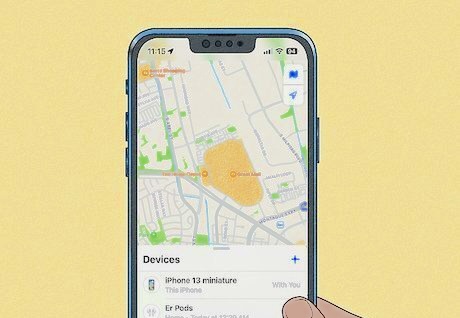

Tracking an iPhone from an Android device can feel complicated, especially when the two platforms operate in completely different ecosystems. Whether you’re a parent trying to locate your child’s iPhone, someone who misplaced their own device, or a friend helping another person find a lost phone, the lack of built‑in cross‑platform tools can be frustrating.
Fortunately, there are reliable ways to track an iPhone using an Android phone — as long as certain settings were enabled beforehand. This guide breaks down three effective methods, rewritten entirely from scratch, to help you locate an iPhone from an Android device.
Method 1: Track an iPhone Using iCloud Find Devices (via Browser)
Apple’s Find My service is the most direct way to locate an iPhone, and it works perfectly fine on an Android device through a web browser. You don’t need an Apple device — just your Apple ID and internet access.
Preconditions
- Find My iPhone must be enabled on the missing iPhone
- Location Services must be turned on
- You must know the Apple ID and password linked to the device
How to Track an iPhone Using iCloud on Android
- Open a browser on your Android device (Chrome, Firefox, Edge, etc.).
- For privacy, consider using Incognito Mode.
- Visit https://www.icloud.com/find.
- Sign in using the Apple ID associated with the missing iPhone.
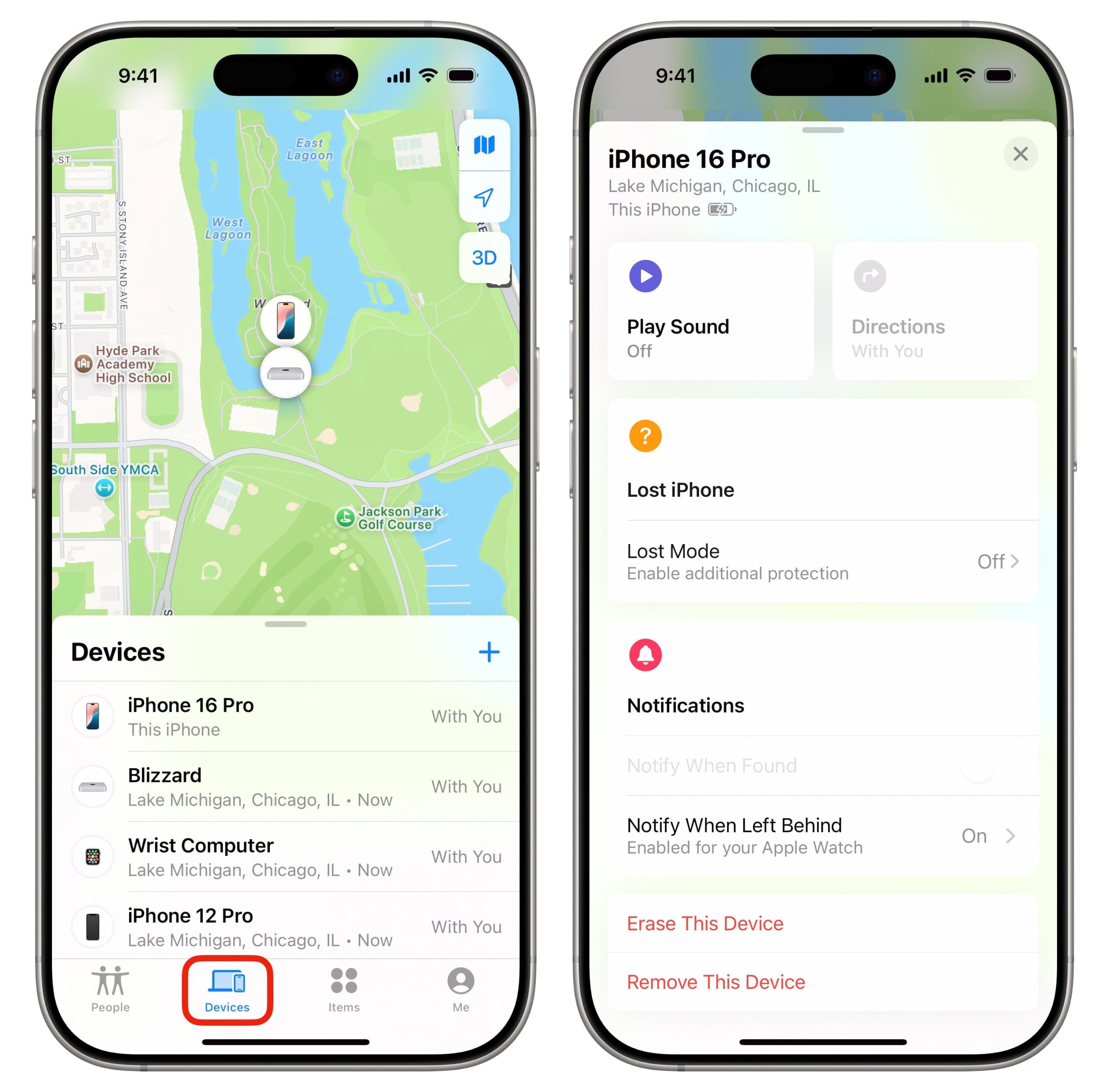
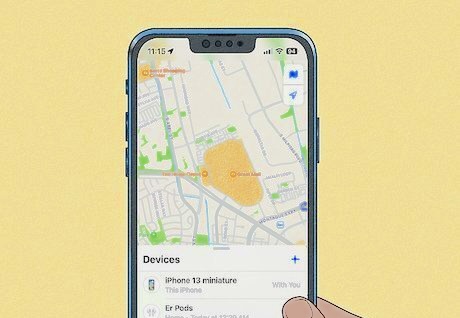
- Select the iPhone from the list of devices.
- A map will display the device’s last known or current location.
Available Actions
- Play Sound – Helps locate the phone if it’s nearby.
- Lost Mode – Locks the device and displays a custom message with contact details.
- Erase iPhone – Wipes all data if recovery seems unlikely.
Always remember to log out after using iCloud on a shared device.
Summary
This is the most reliable free method for tracking an iPhone from an Android device. It provides real‑time location (if the device is online), plus remote locking and data‑erasing options.
Method 2: Track an iPhone Using Google Maps Timeline or Location Sharing
Google Maps offers two powerful features that can help track an iPhone from an Android device:
- Location Sharing (real‑time tracking)
- Timeline (location history)
These features work across platforms as long as the iPhone user has enabled them.
Preconditions
- Google Maps installed on the iPhone
- Location Services enabled
- Location History enabled (for Timeline)
- Location Sharing enabled (for real‑time tracking)
- Active internet connection on the iPhone
Step 1: Prepare the iPhone
- Install Google Maps from the App Store:
https://apps.apple.com/app/google-maps/id585027354 - Sign in with your Google account.
- Go to Settings → Personal content.
- Enable Location Services (in iPhone Settings).
- Turn on Location History.
Step 2: Enable Real‑Time Location Sharing
- Open Google Maps on the iPhone.
- Tap your profile → Location Sharing.
- Choose Share your location.
- Select Until you turn this off.
- Share with your Google account (the one you’ll use on Android).
Step 3: Track the iPhone from Android
- Open Google Maps on your Android device.
- Sign in with the same Google account.
- Tap your profile → Location Sharing.
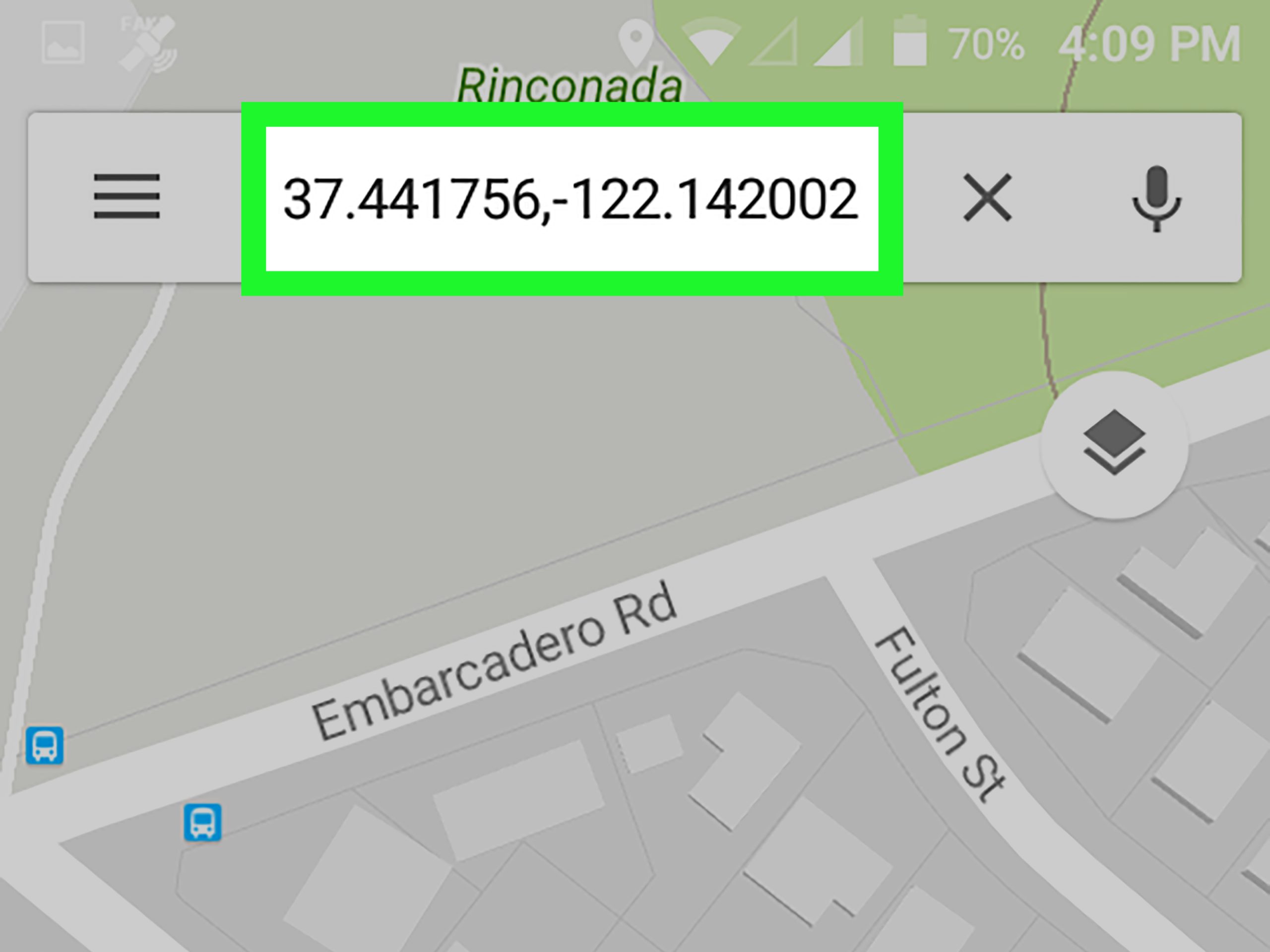
- View the iPhone’s real‑time location.
For Timeline:
- Visit https://www.google.com/maps on Android.
- Sign in with the same Google account.
- Open the menu → Your Timeline.
- Select a date to view location history.
Summary
Google Maps is ideal for:
- Families using both Android and iPhone
- Real‑time location sharing
- Viewing past locations through Timeline
However, it must be set up before the iPhone goes missing.
Method 3: Use Cross‑Platform Family Locator Apps
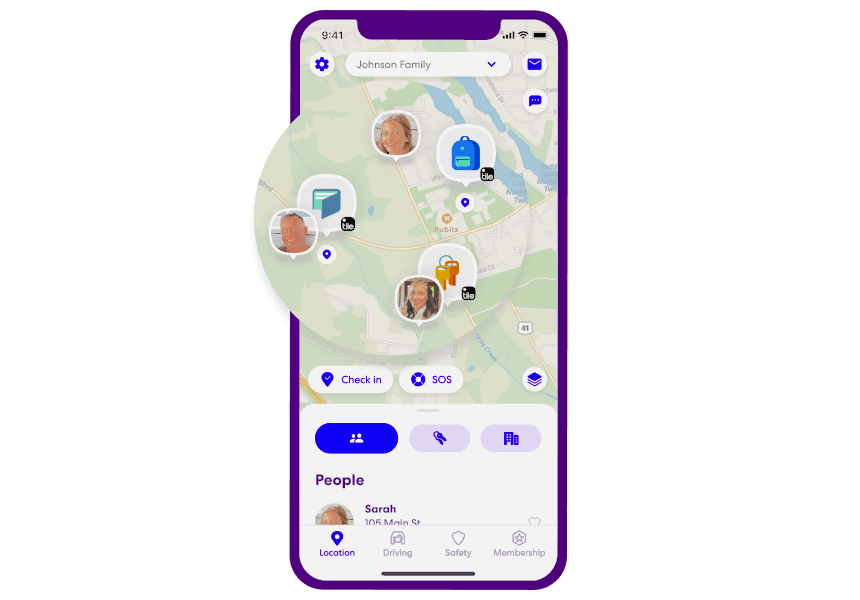
Some family locator apps work across Android and iPhone, allowing users to track each other’s locations in real time. These apps are designed for consensual family tracking, not hidden monitoring.
Below are examples of apps available on official app stores:
Life360 (Android & iOS)
- Google Play Store:
https://play.google.com/store/apps/details?id=com.life360.android.safetymap - Apple App Store:
https://apps.apple.com/app/life360-find-family-friends/id384830320
Google Family Link (Android & iOS)
- Google Play Store:
https://play.google.com/store/apps/details?id=com.google.android.apps.kids.familylink - Apple App Store:
https://apps.apple.com/app/google-family-link/id1150085200
How These Apps Work
- Install the app on both devices
- Create a family group
- Grant location permissions
- Track the iPhone from your Android device
Pros
- Real‑time location
- Geofencing alerts
- Cross‑platform compatibility
Cons
- Requires installation on both devices
- Requires consent from all users
Which Method Should You Choose?
Your choice depends on your situation:
If your iPhone is lost:
Use iCloud Find Devices — the most reliable and immediate method.
If you want ongoing location sharing:
Use Google Maps Location Sharing.
If you want family‑wide tracking:
Use a cross‑platform family locator app like Life360 or Google Family Link.
Frequently Asked Questions
Can I track an iPhone from Android without Apple ID?
No. You must know the Apple ID to use iCloud Find Devices.
Can I track an iPhone that is turned off?
You can only see its last known location.
Can Google Maps track an iPhone in real time?
Yes — but only if Location Sharing was enabled beforehand.
Do I need to install an app on both devices?
Only for cross‑platform family locator apps.
Is there a free way to track an iPhone from Android?
Yes — iCloud Find Devices and Google Maps are both free.
Final Thoughts
Tracking an iPhone from an Android device may seem complicated, but the methods above make it entirely possible. Whether you’re using iCloud, Google Maps, or a cross‑platform family locator app, you can locate an iPhone quickly and safely — as long as the right settings were enabled beforehand.

Add comment